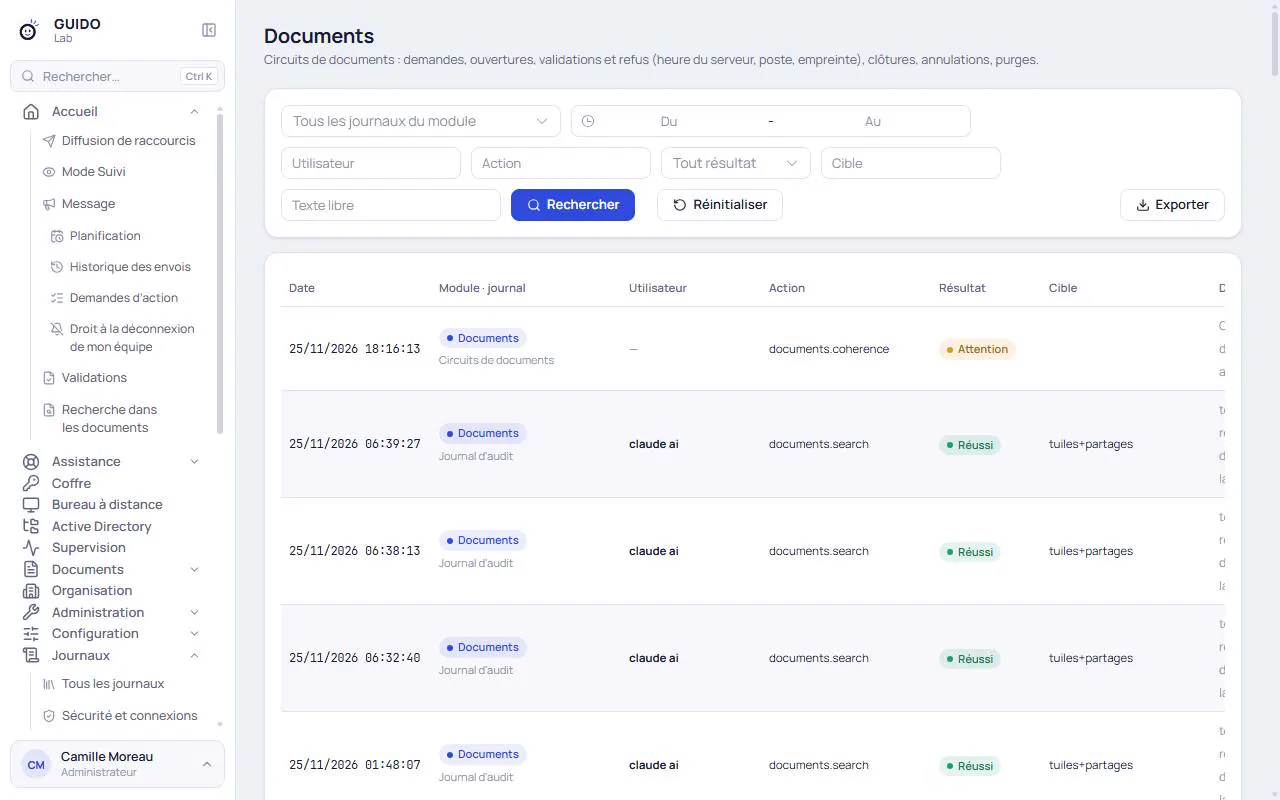
- Step 1
Decide who can request
A department manager turns on, in “My departments”, the right to request approvals for their deputy.
Screen Home, Validations, My departments
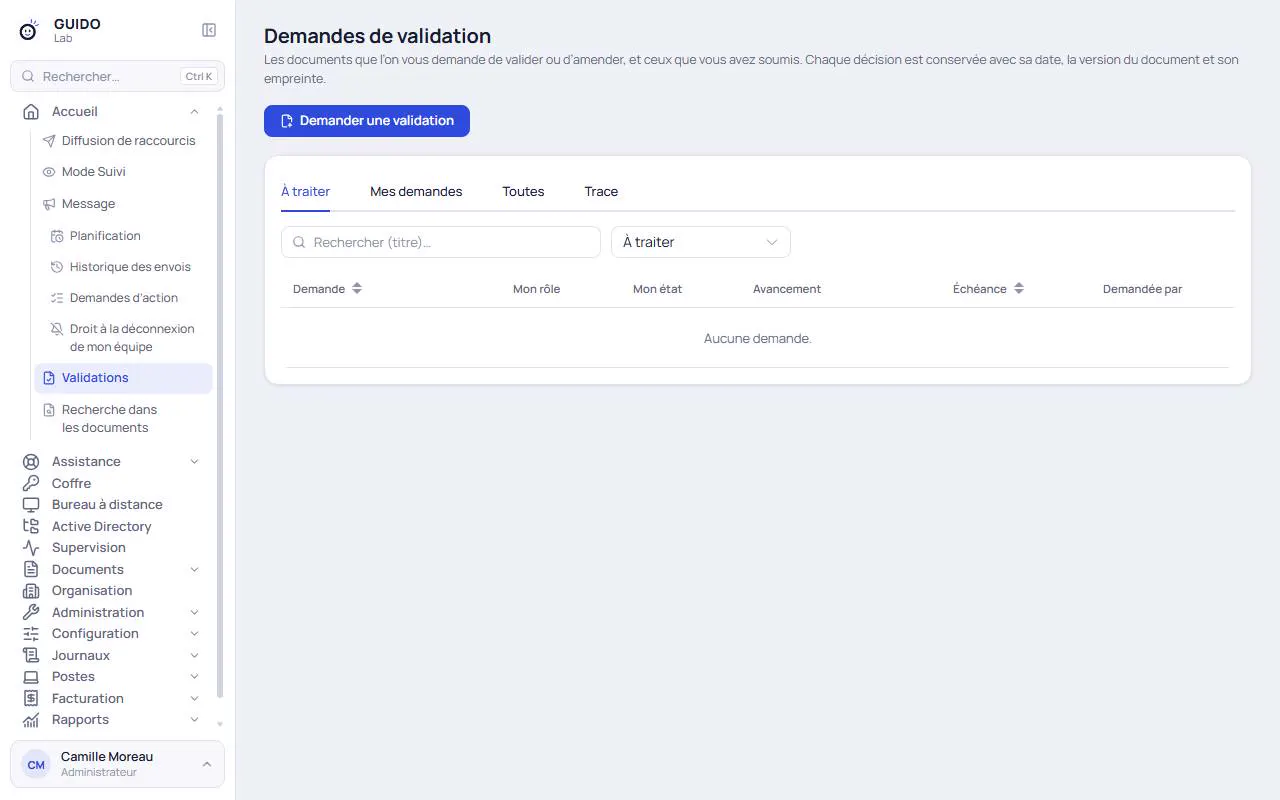
- Step 2
Send the request
Click “Request an approval”: title, document (attached file, network path or web address), deadline, reminder, target team. GUIDO tells you how many people the request went to.
Screen Home, Validations, Request an approval
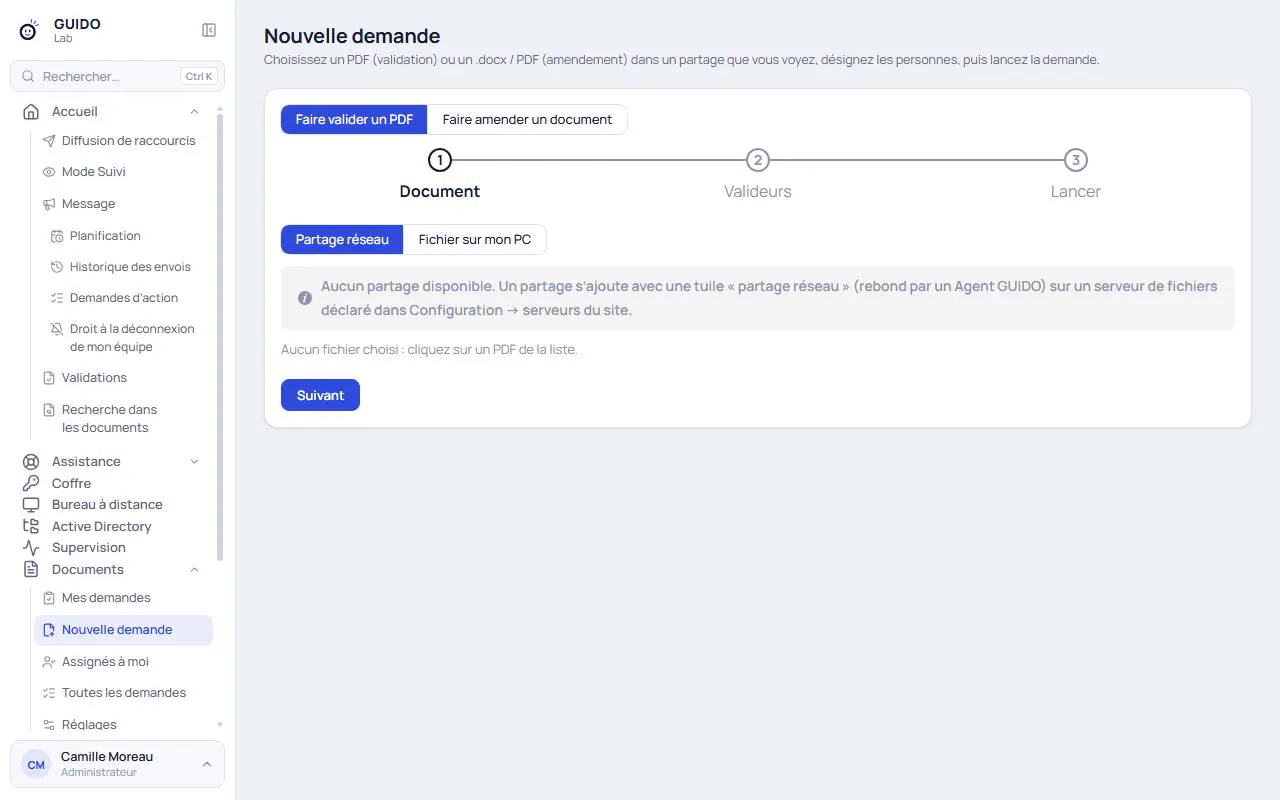
- Step 3
Everyone answers in the same place
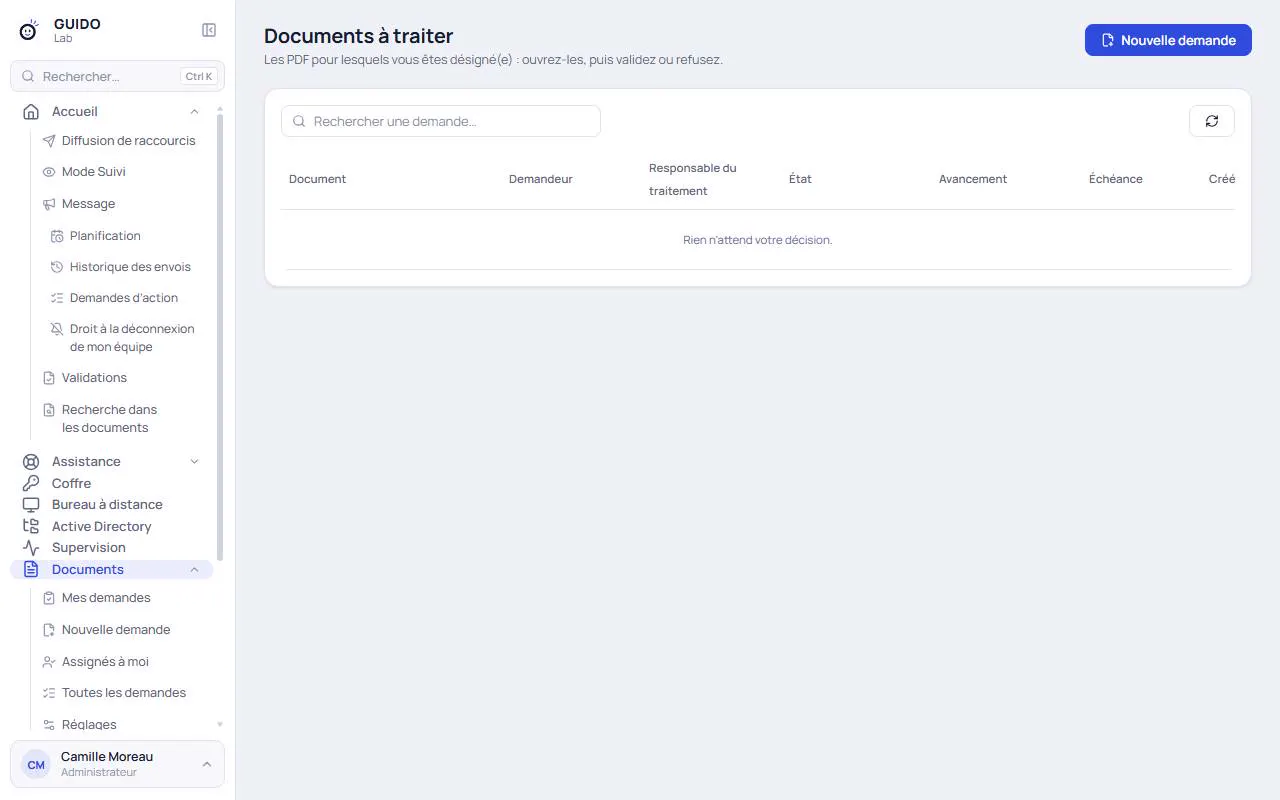
An “To handle” tile appears on every Home. The recipient opens the document, then approves, amends (comment or corrected version) or refuses with a reason.
Screen Home, Approval request tile
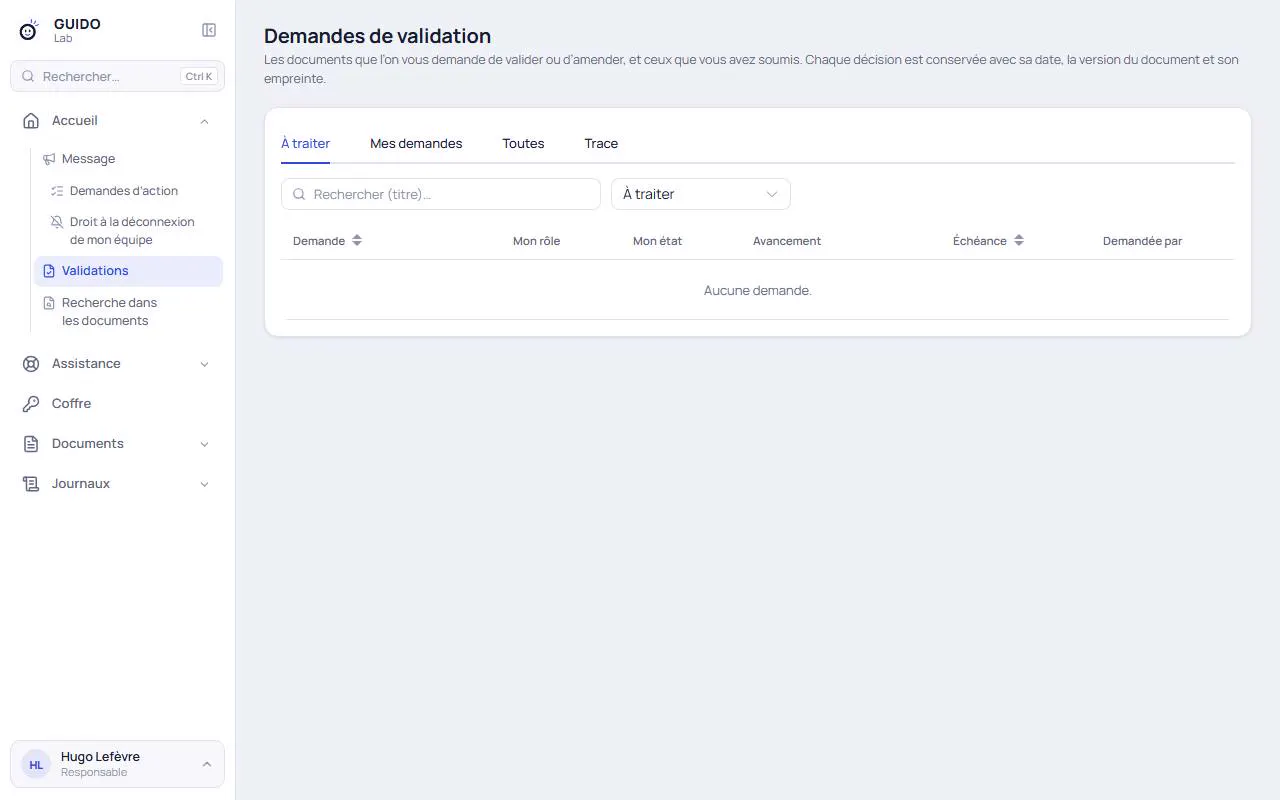
- Step 4
Upload a new version
The creator uploads version 2 and can set back to “to handle” those who had already answered. The trace keeps the earlier decisions.
Screen Home, Validations, request record
- Step 5
Close and export the trace
When everything is approved, close the request. An administrator exports the trace as CSV: who, when, which decision, which version, with the document’s SHA-256 fingerprint.
Screen Logs, approvals