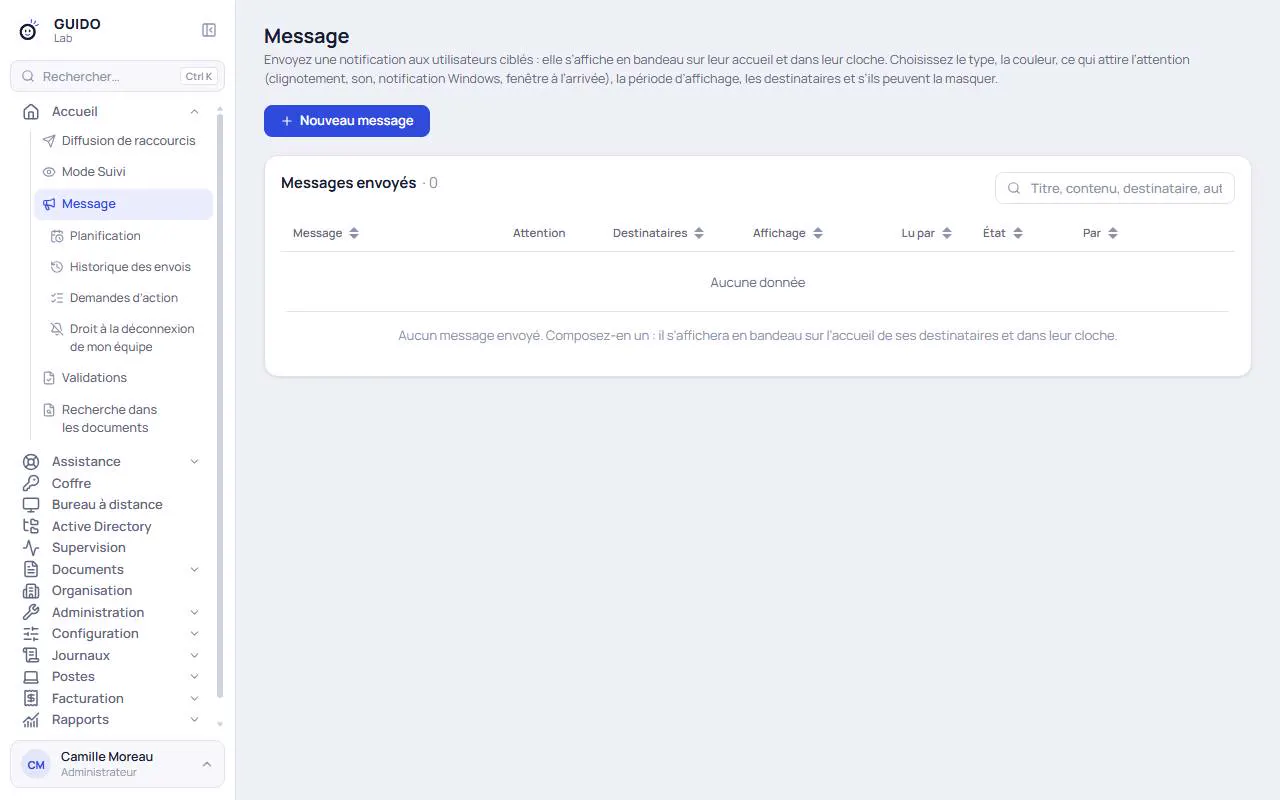
- Step 1
Compose the profile
Create a profile from your own tab, then in composition mode add zones and tiles: remote desktop, network share, web link, monitoring. A note can go with a tile.
Screen Home, Shortcut distribution
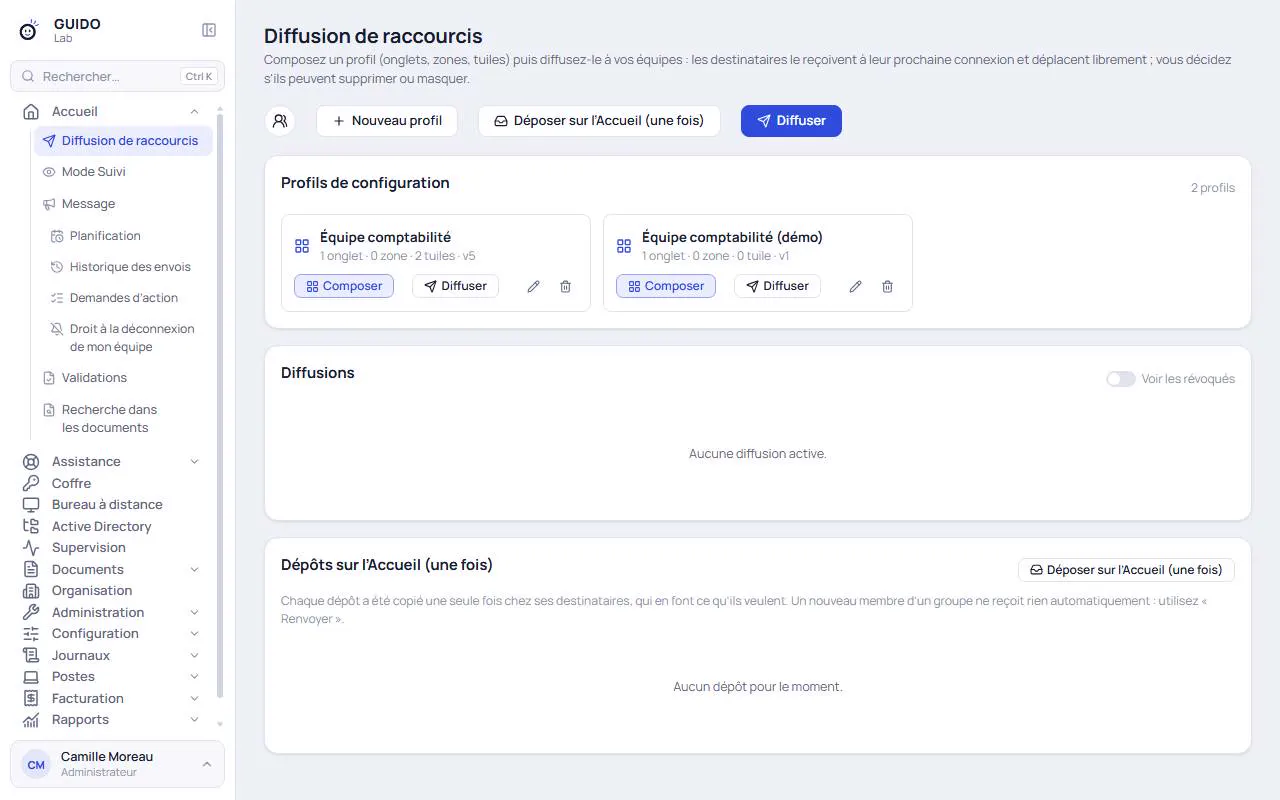
- Step 2
Pick recipients and rules
Pick the group, decide whether members may hide or delete, and the mode (dedicated tabs for example). GUIDO confirms “Distributed to n recipients”.
Screen Home, Shortcut distribution
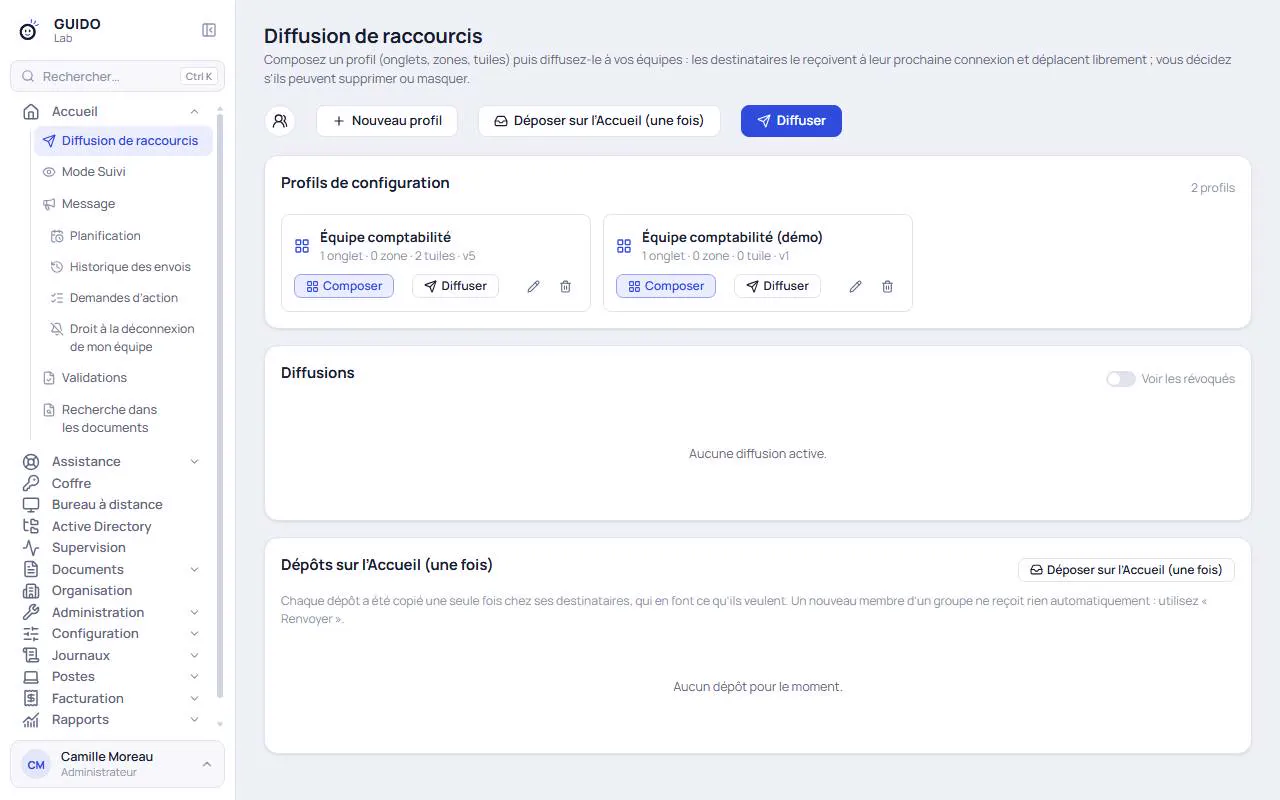
- Step 3
What each member gets
A tab marked with a paper plane appears on their Home. They can arrange the tiles their way. A locked tile can be hidden but not deleted. New members of the group receive it automatically.
Screen Recipient’s Home
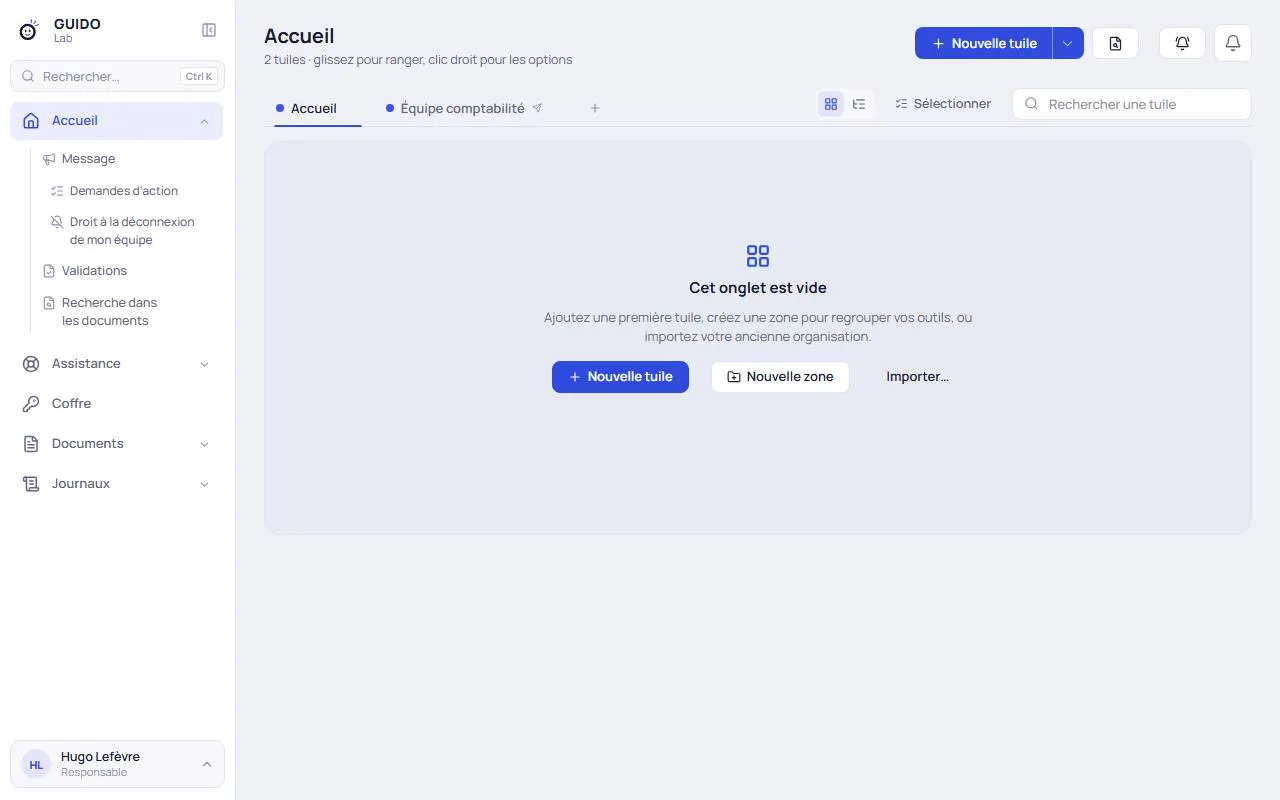
- Step 4
Inform the team
Publish a banner message, for example for maintenance, with a Warning type and the option that it cannot be closed before a date.
Screen Home, Message