- Step 1
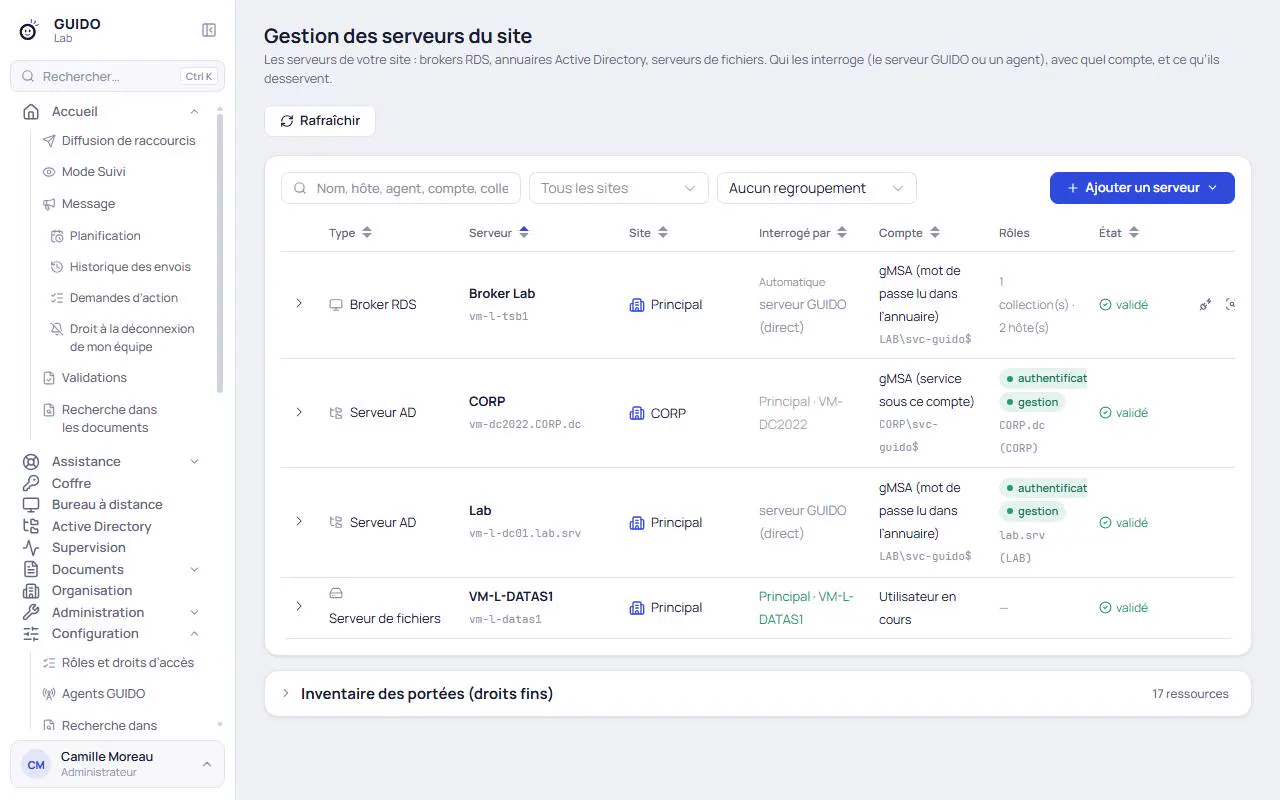
Have a declared file server
Tracking assumes a file server declared in GUIDO. It works fully with the GUIDO Agent installed on the server that hosts the file, on the NTFS or ReFS volumes of a Windows server.
Screen Settings, Site server management
- Step 2
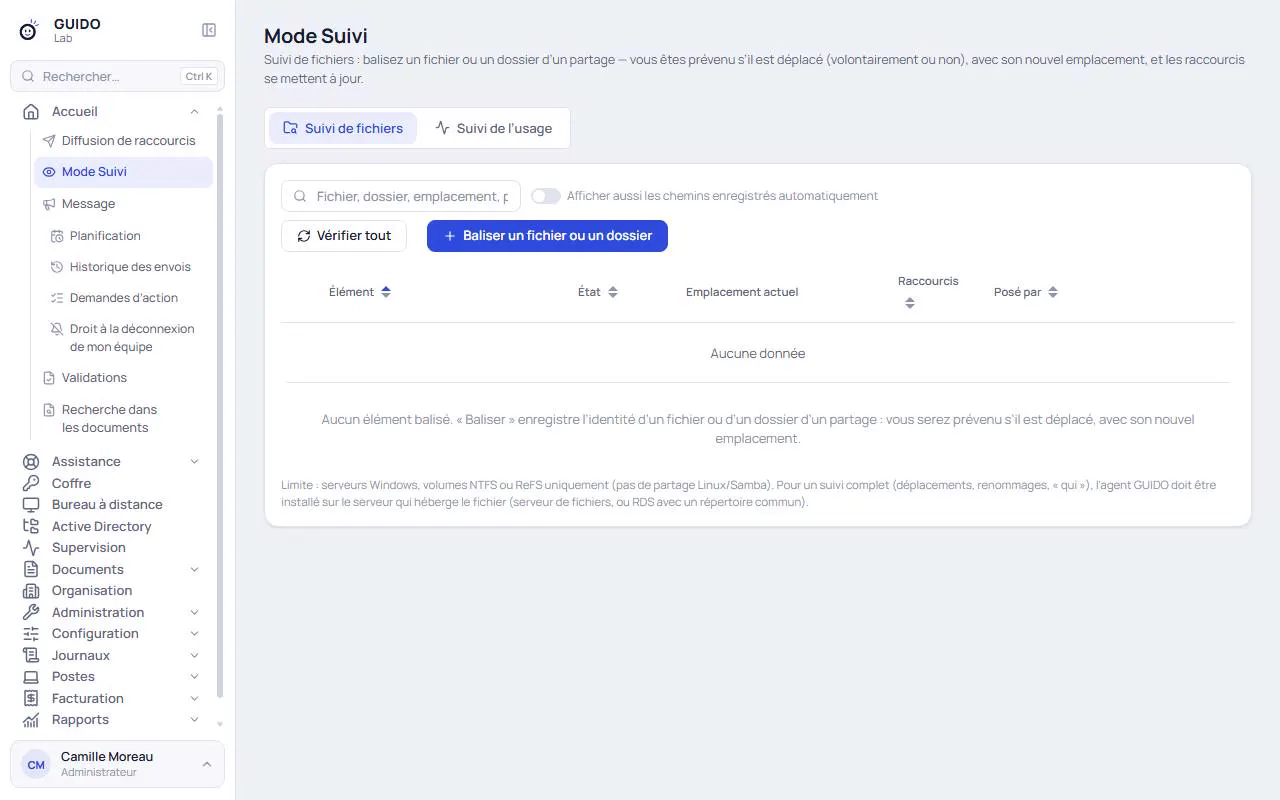
Tag a file or folder
In the “File tracking” tab, tag the file or folder on a share to watch. The tab is visible with the right to manage delegations or to distribute shortcuts.
Screen Home, Tracking mode, File tracking
- Step 3
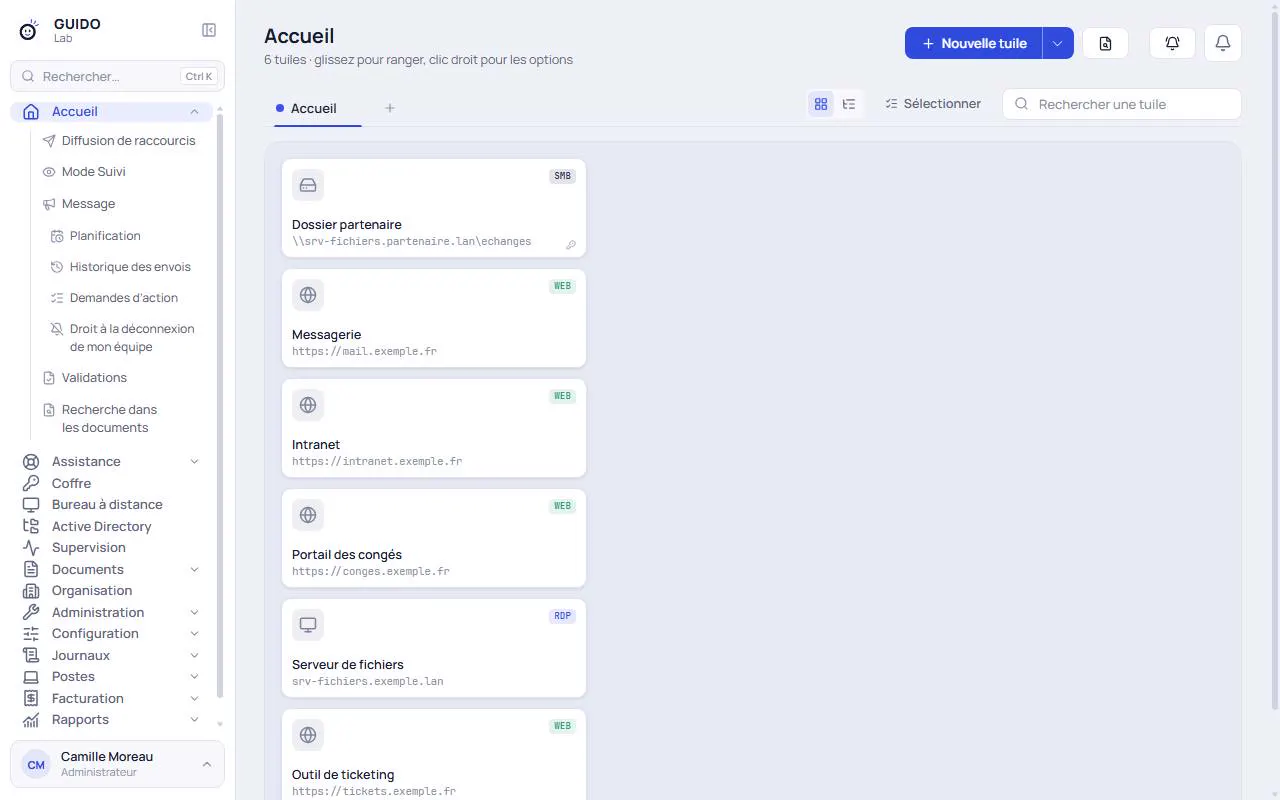
See the banner when a file moves
If a tracked file or folder is moved, on purpose or not, an orange banner appears at the top of Home with the old and new location. “Update” fixes the tile while keeping the drive letter, “Ignore” leaves it as is.
Screen Home
- Step 4
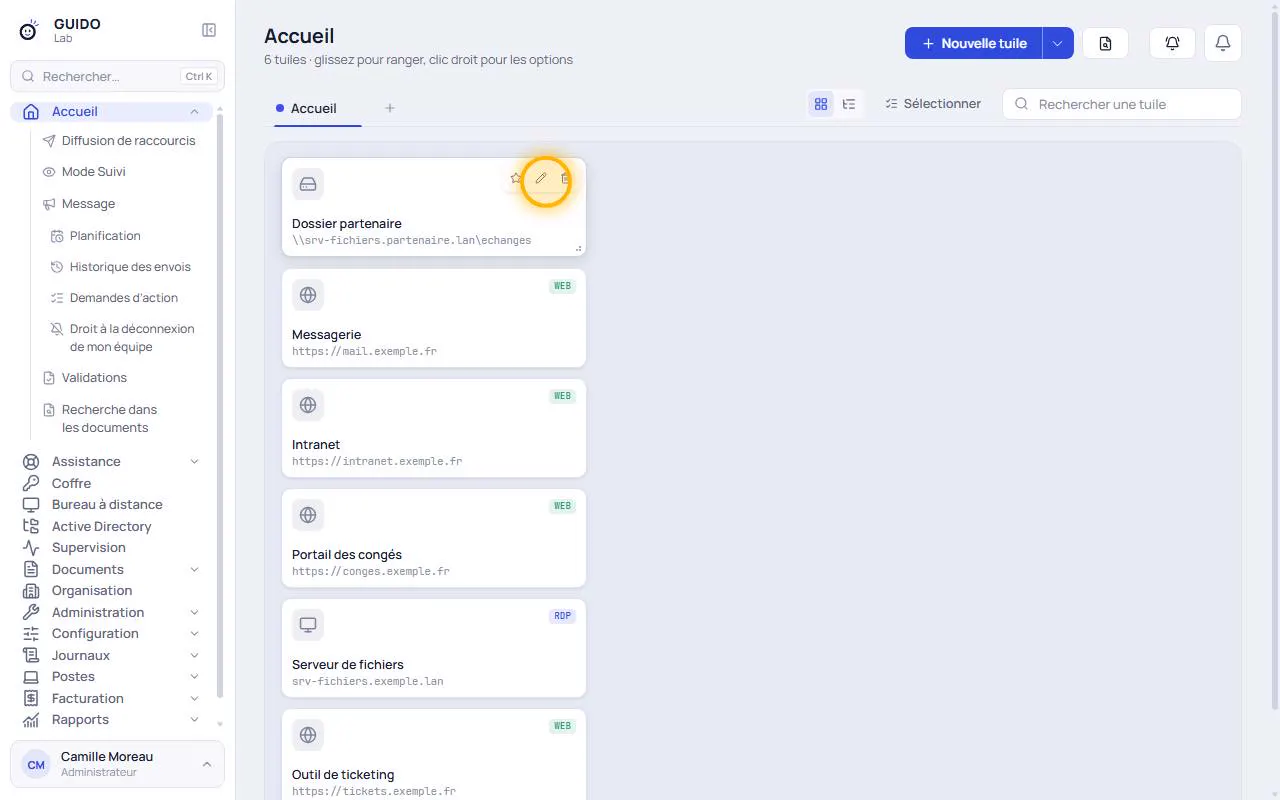
Fix a path yourself
If you fix the path of a share tile yourself, the server tries to prove it is the same file, tells you, and can offer the update to the other users who had the same link.
Screen Home, tile editor, Network share
- Step 5
Resolve from a ticket
When creating a ticket, tick “One of my tiles does not work”, choose the tile then “Launch and record”. A technician diagnoses the file read-only: GUIDO gives the probable location and can offer to fix the tile, with your consent.
Screen Help desk, ticket record, File and tile