- Step 1
Define the application
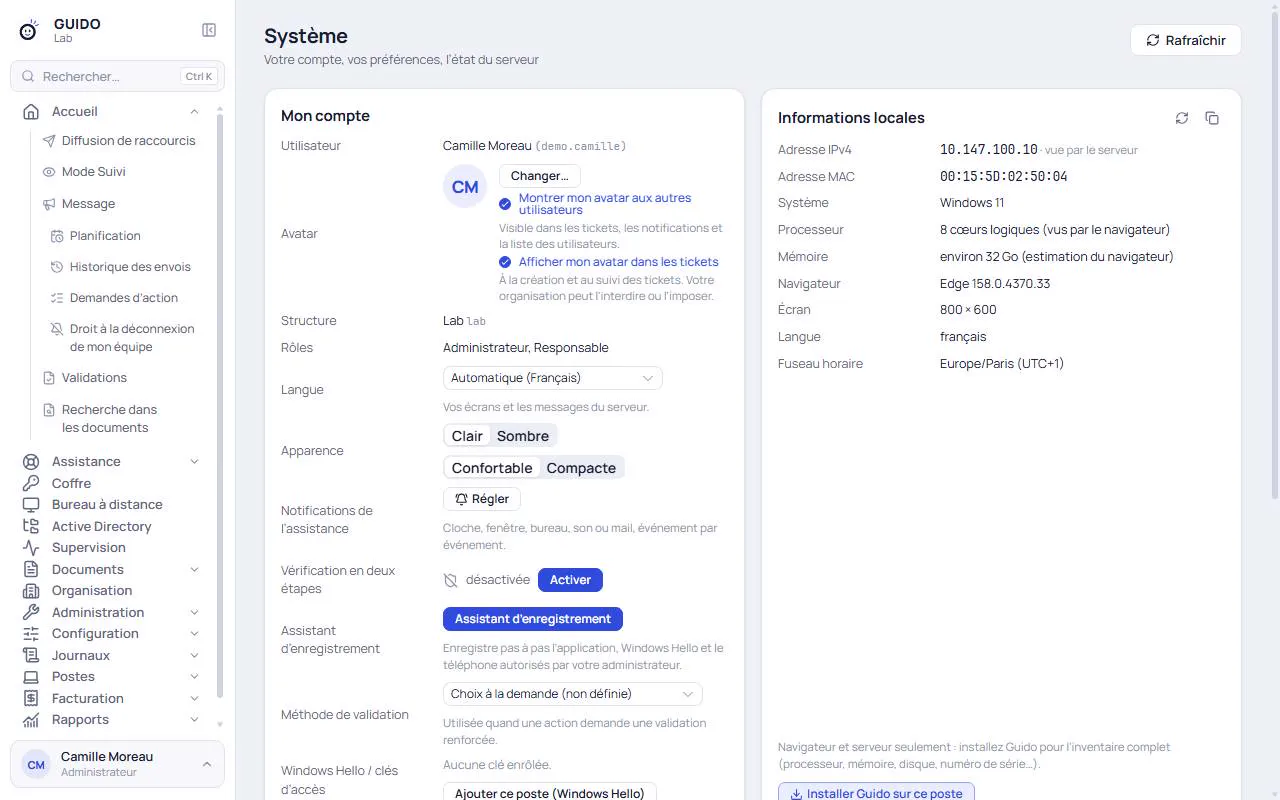
The administrator creates a “Protected application” tile: path of the executable on a local drive, fingerprints used to check it is the right software, fields of the sign-in screen and possible outcomes.
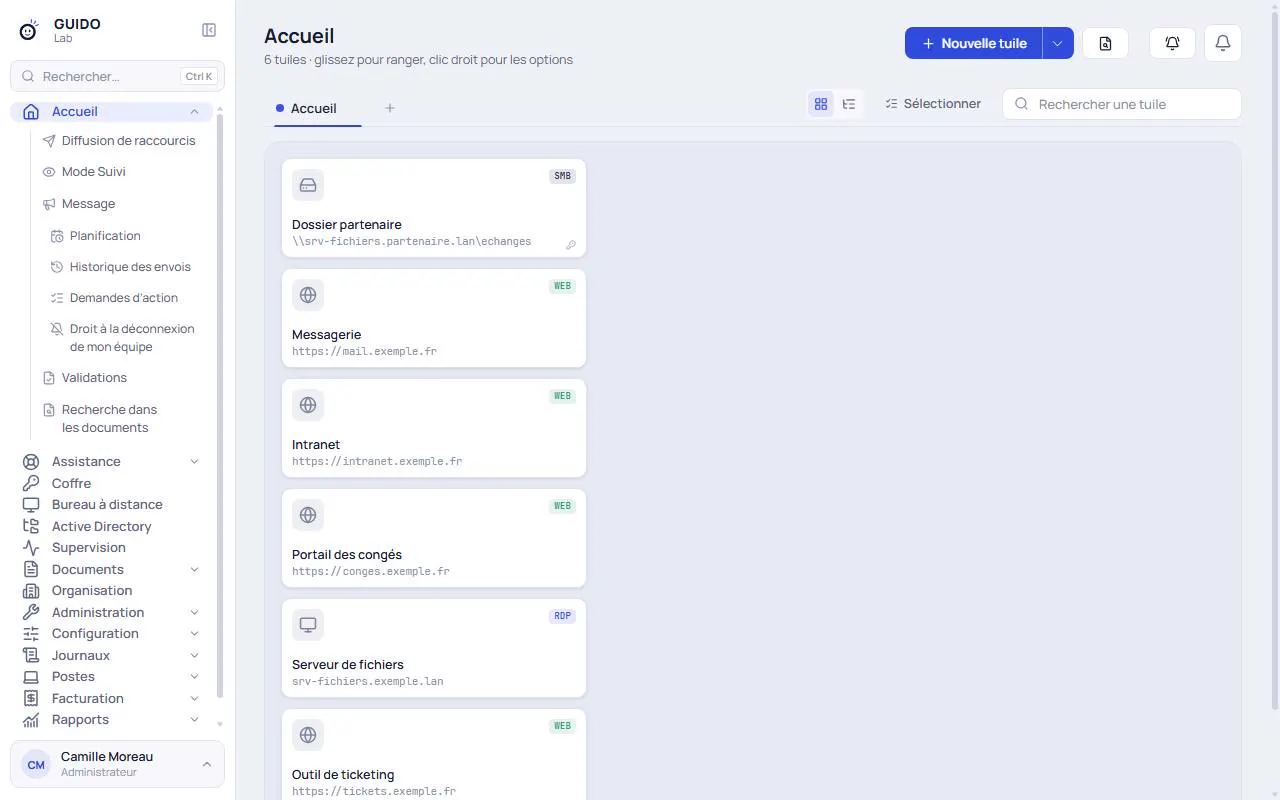
Screen Home, New tile, Protected application
- Step 2
Decide where each value comes from
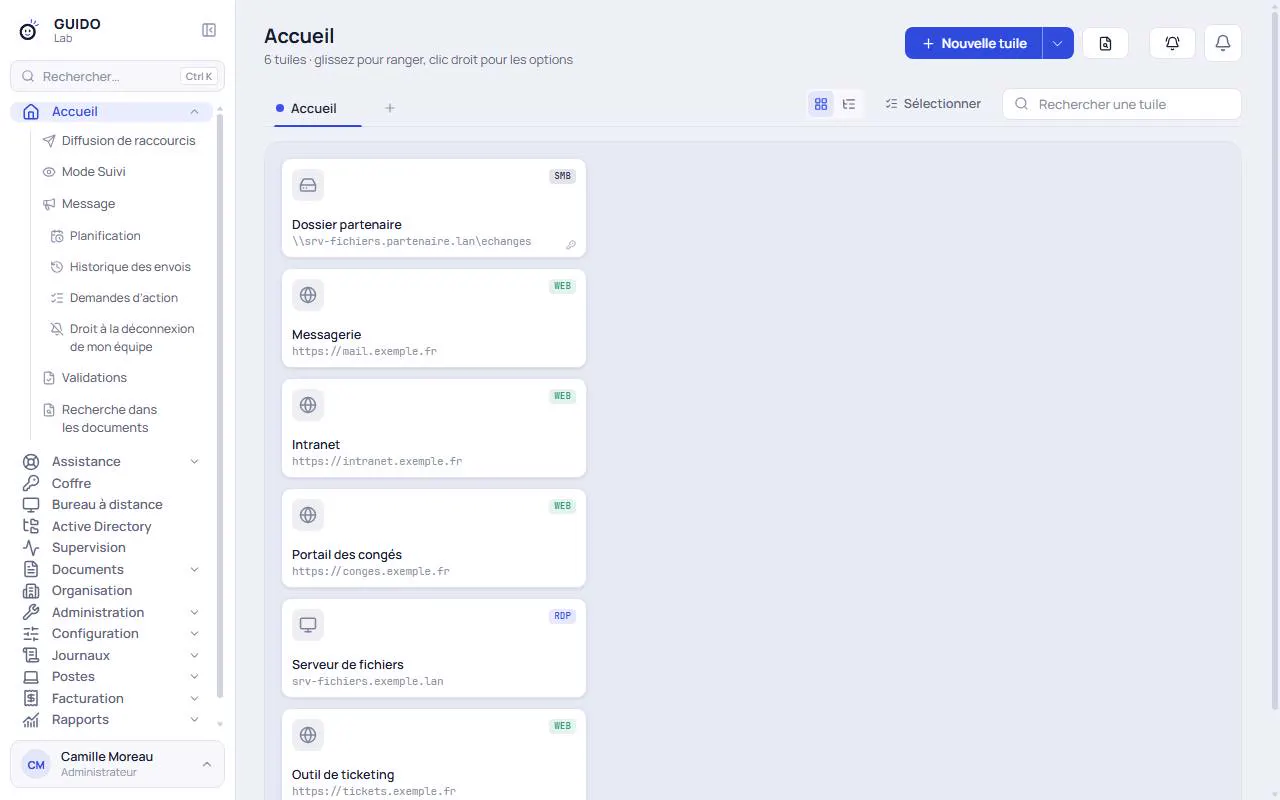
For each field of the sign-in screen, the administrator sets an imposed value, or lets the user enter it if allowed. Credentials come from the vault, for example an entry shared as “Use without seeing”.
Screen Home, tile editor, Opening and credential
- Step 3
Choose where the zone shows
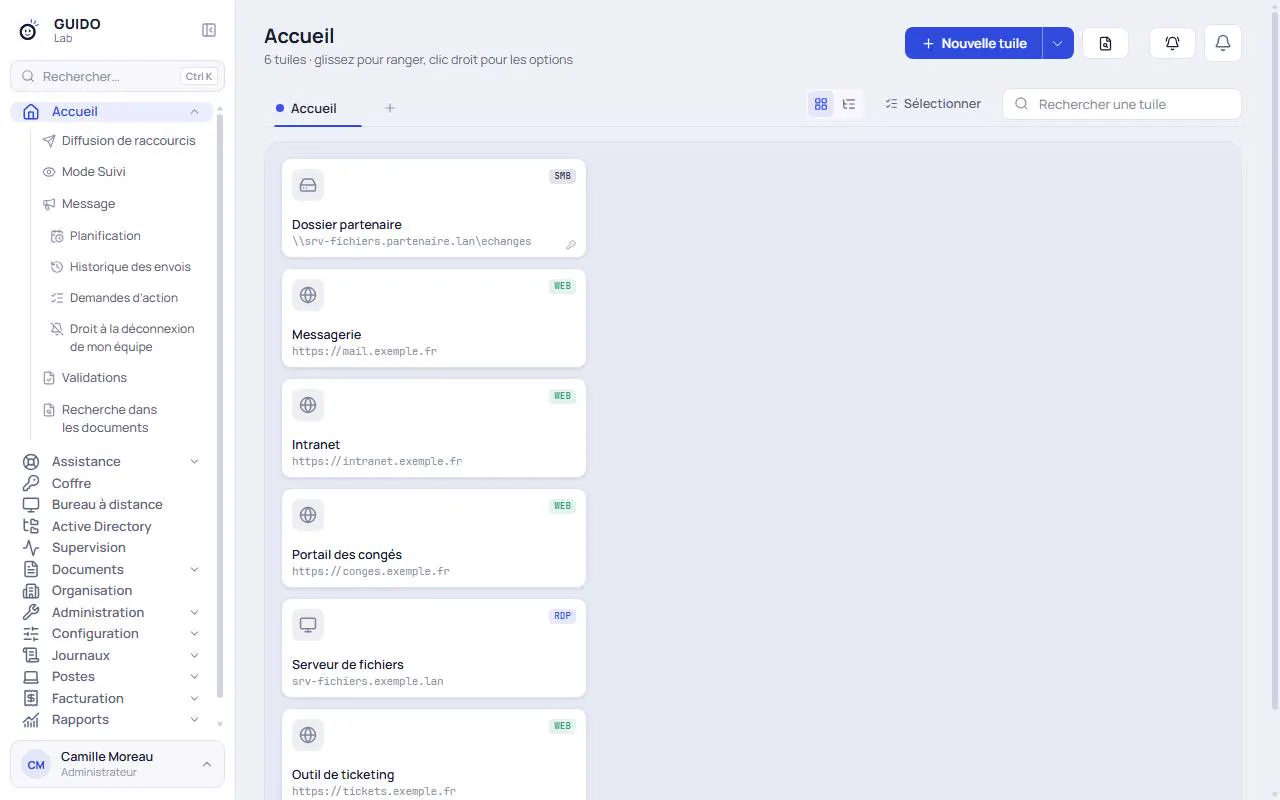
The “Protected applications missing from the machine” setting of the zone window hides tiles on machines where the software is not present, or greys them out. A user on their own PC can thus not see the zone, and see it on the remote desktop server.
Screen Home, zone window
- Step 4
First launch by the user
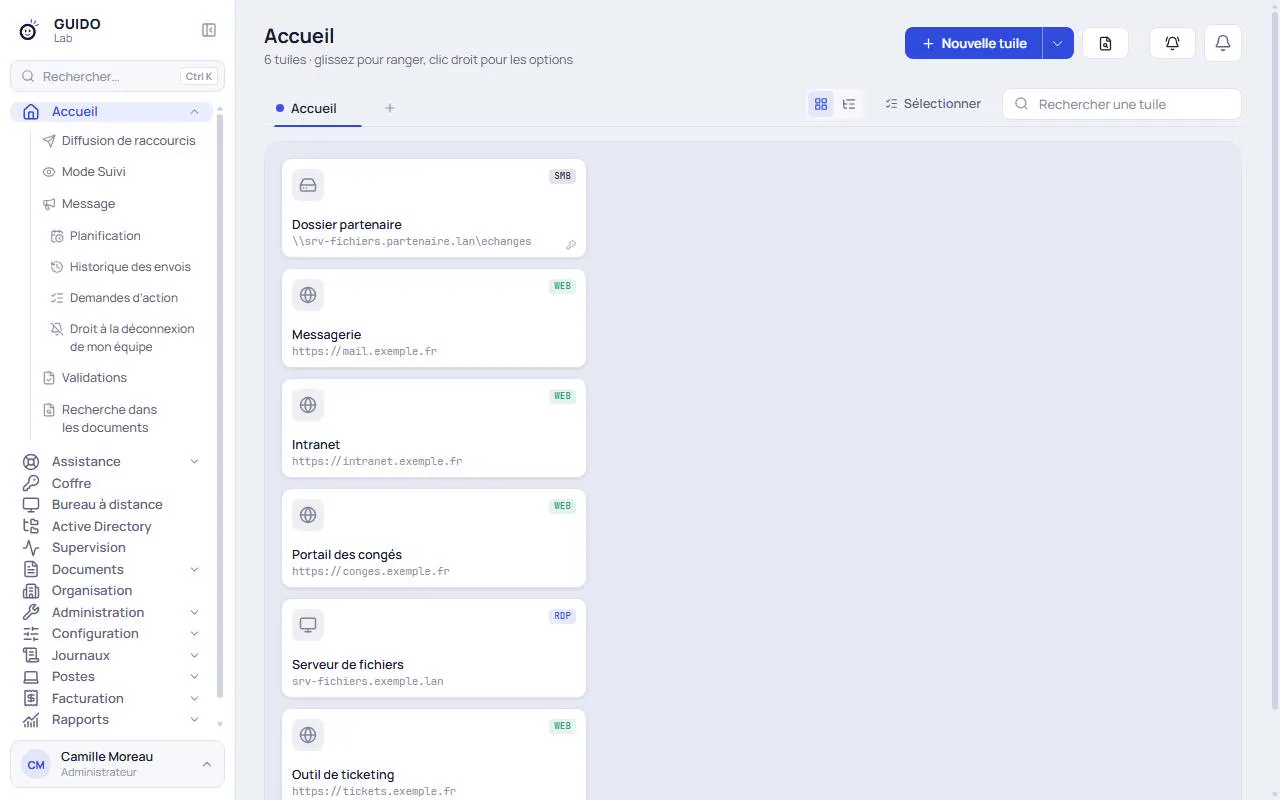
If a shared credential exists for this software, GUIDO offers it. Otherwise it asks for the software’s username and password and stores them in the user’s personal vault.
Screen Home, click the tile
- Step 5
Launch: check, two-step verification, entry
GUIDO checks that the launched software is the right one, asks for two-step verification, then fills in the sign-in screen in place of the user. An adjustable grace period exempts the next validation. Each step is written to the log.
Screen Home, click the tile