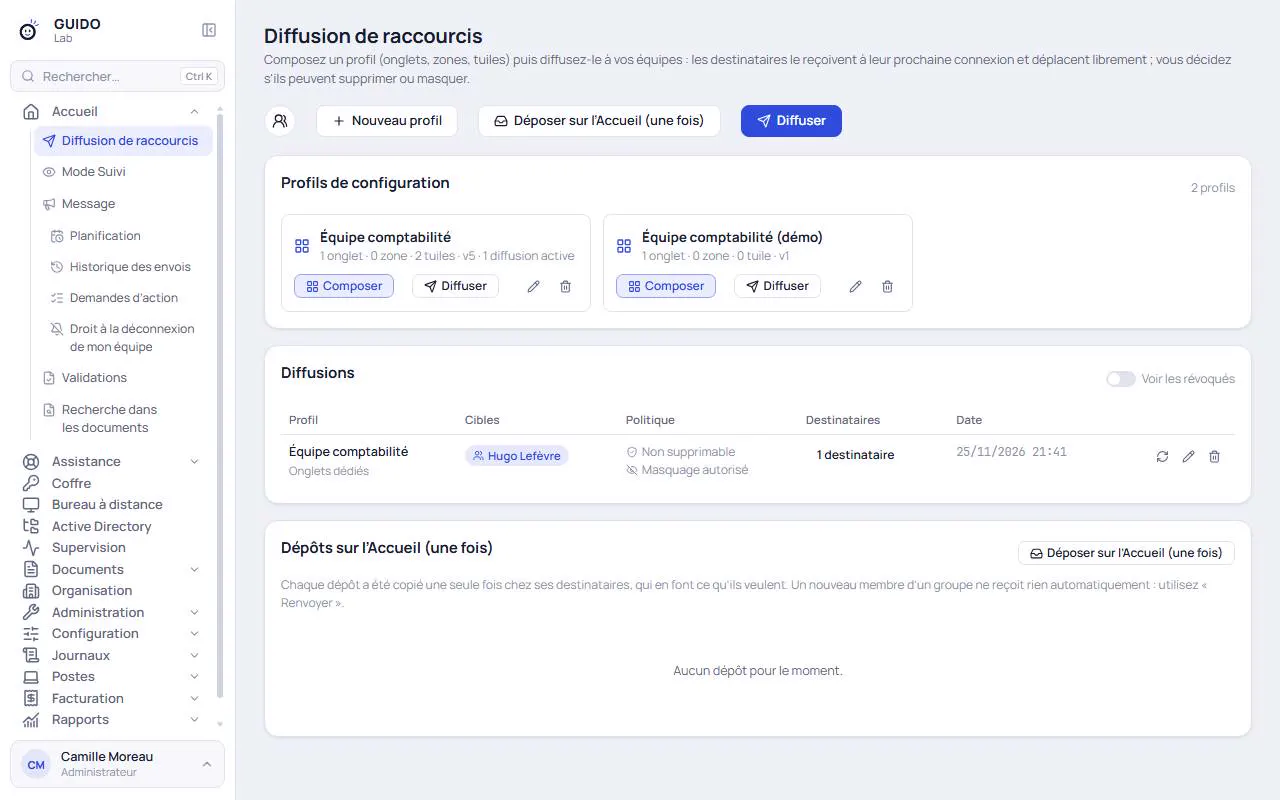
- Step 1
Choose the content
Take one or more tiles (a folder carries its content), or a whole zone, from your Home or one of your configuration profiles. Content distributed to you cannot be dropped.
Screen Home, Shortcut distribution, Drop
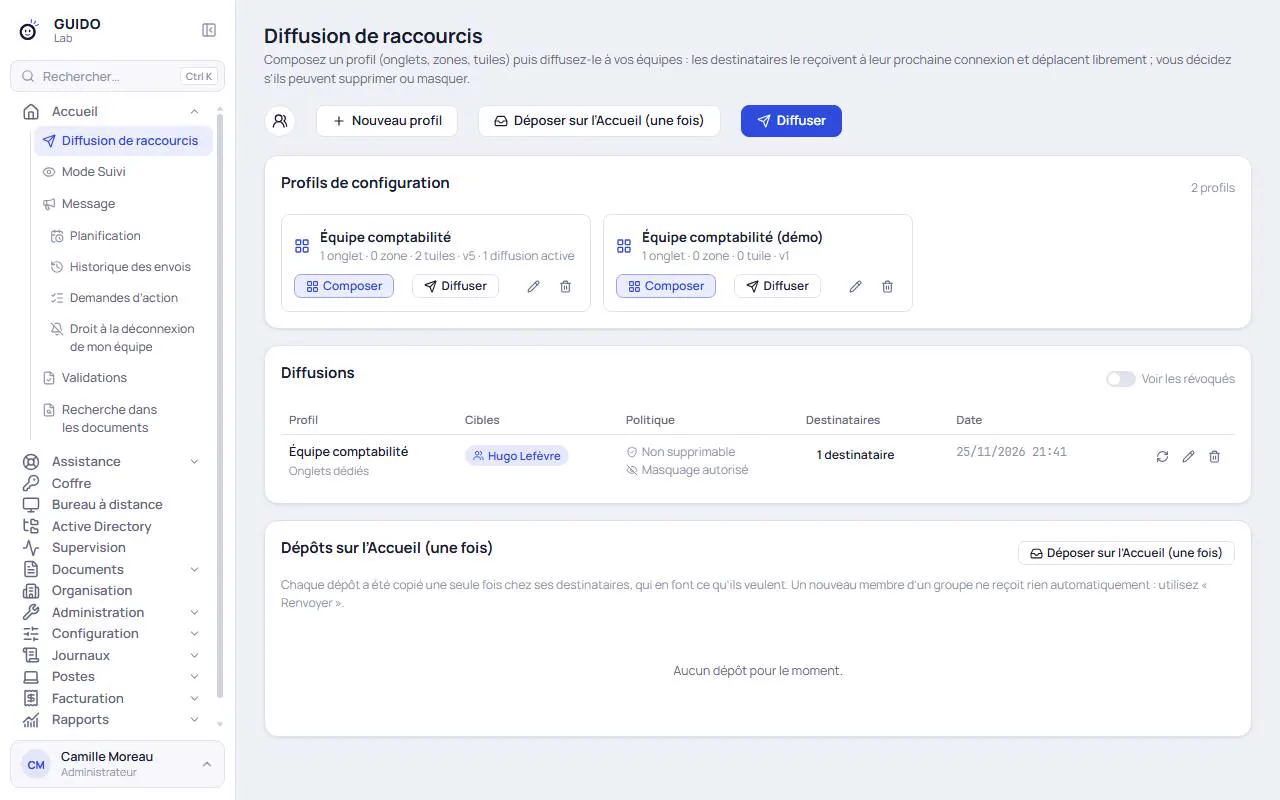
- Step 2
Choose the place for the recipients
Tiles land in their first tab, in a tab of the same name (created if missing) or in a new tab, in a named zone or at the root. Never in a tab or zone that comes from a distribution.
Screen Home, Shortcut distribution, Drop, Place
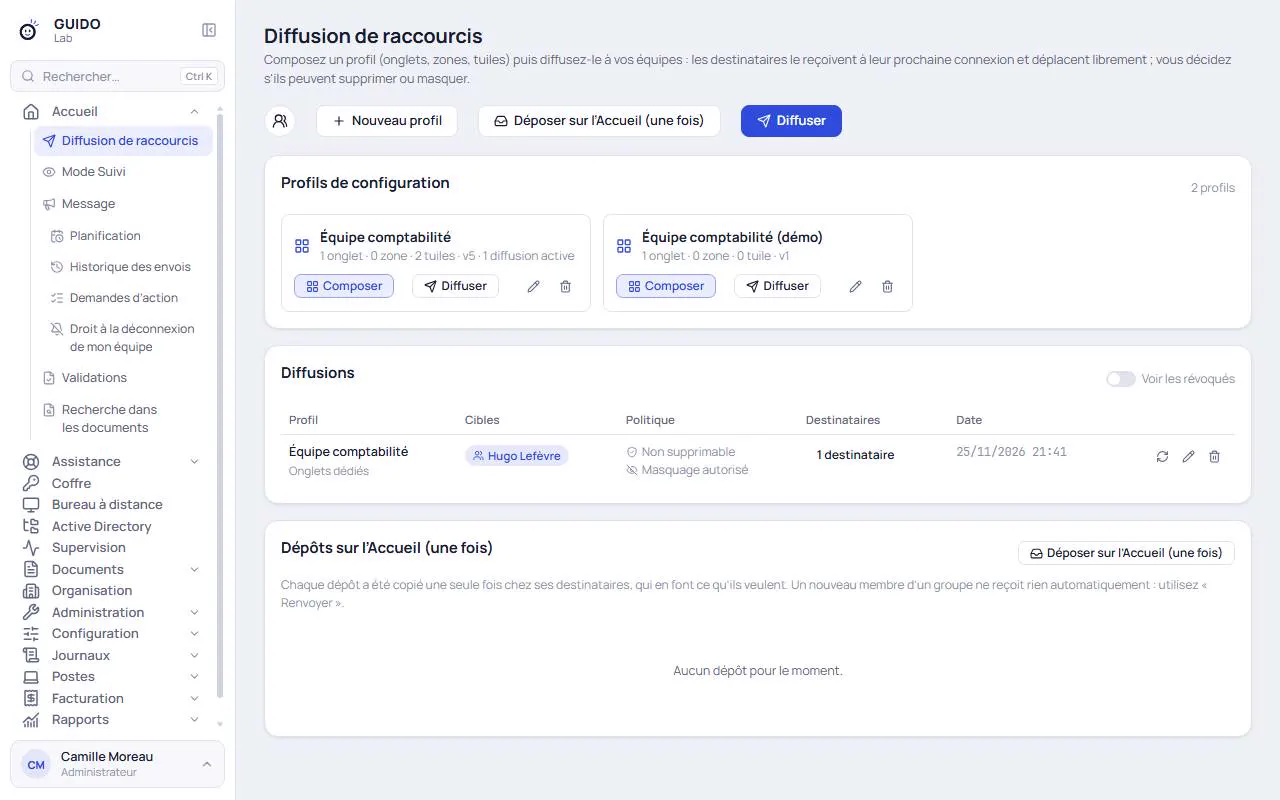
- Step 3
Choose the recipients
Pick named users or groups (directory, aliases), within your scope: the administrator has everything, a team manager their groups and users. Group members are fixed at the time of sending.
Screen Home, Shortcut distribution, Drop, Recipients
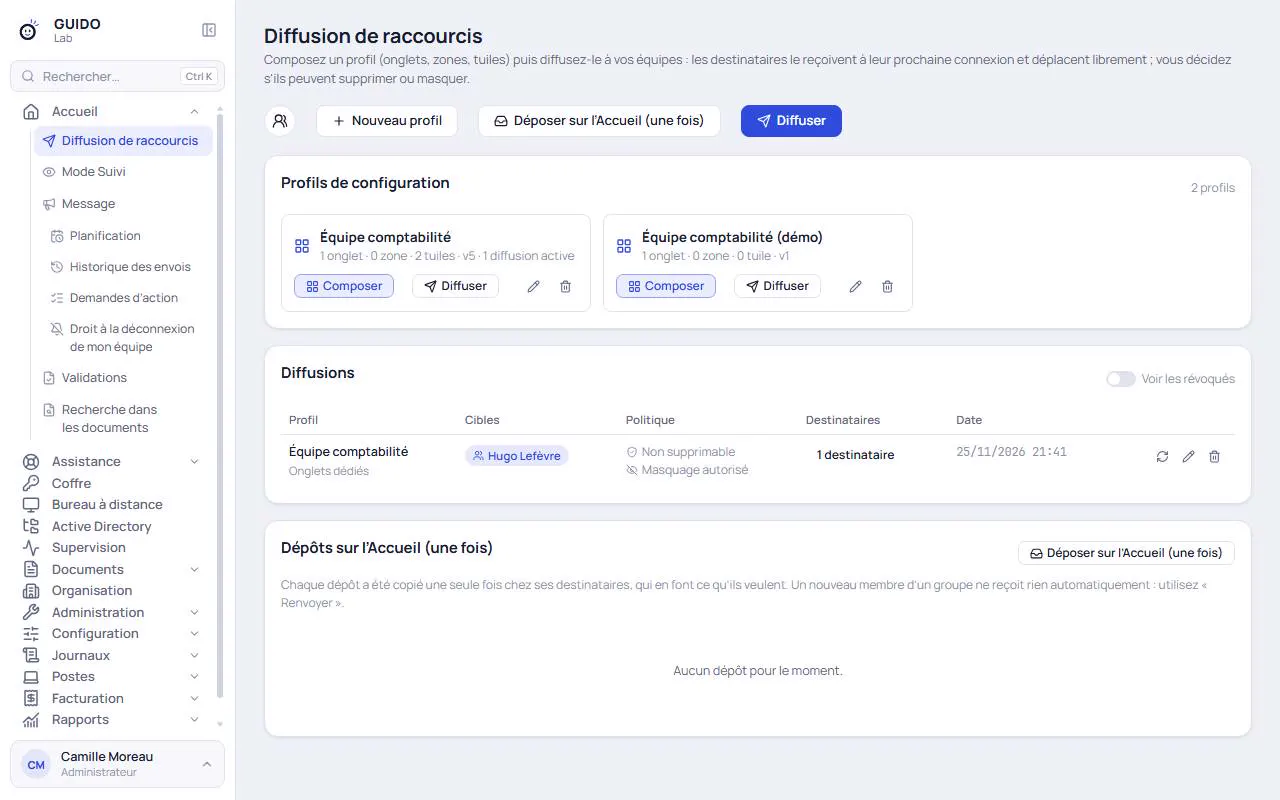
- Step 4
Check the preview and confirm
The preview summarizes the content, the destination, the actual recipients and warnings. Sending is only possible with that preview’s validation token, single use and valid for 10 minutes: if anything changes, a new preview is needed.
Screen Home, Shortcut distribution, Drop, Preview
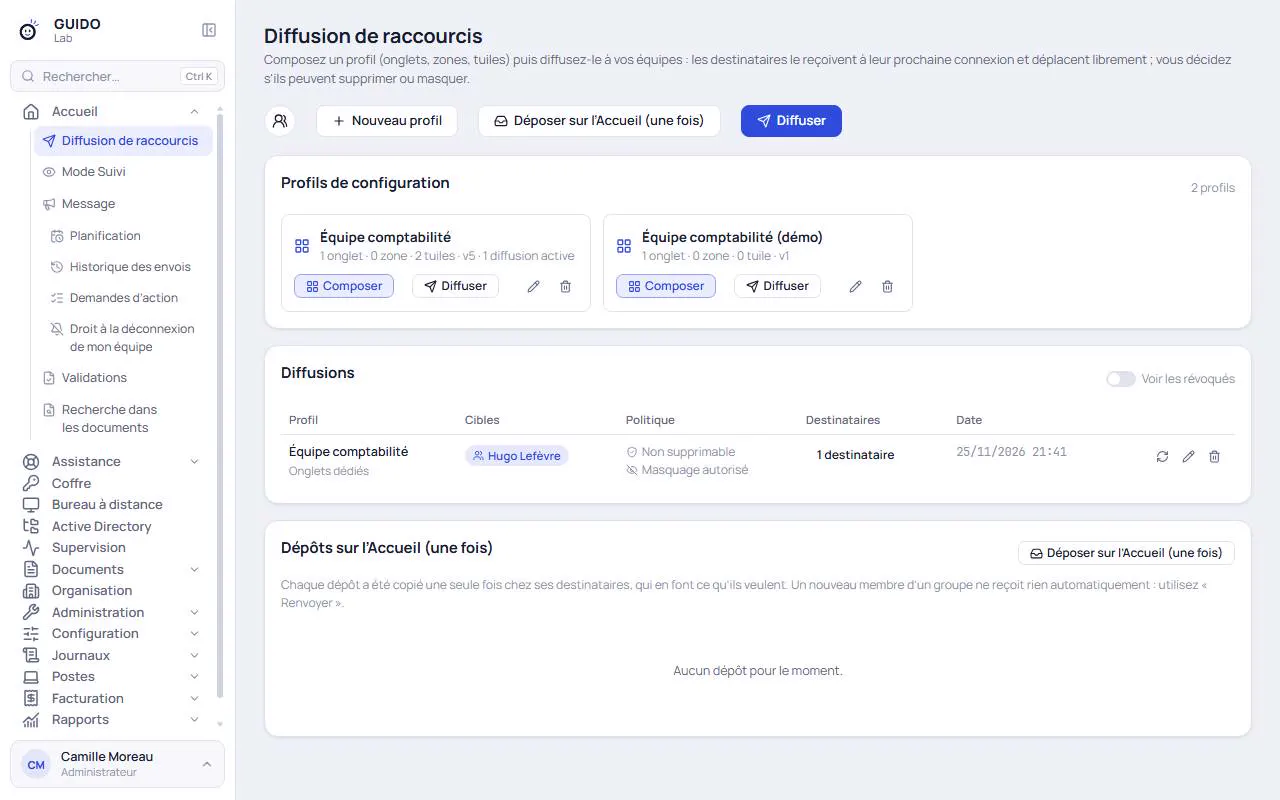
- Step 5
Send again to a newcomer
A new member of a group receives nothing automatically: a drop is a one-time send. “Send again” drops exactly the content frozen at the first send, even if the original has changed or disappeared.
Screen Home, Shortcut distribution, Drop, Send again