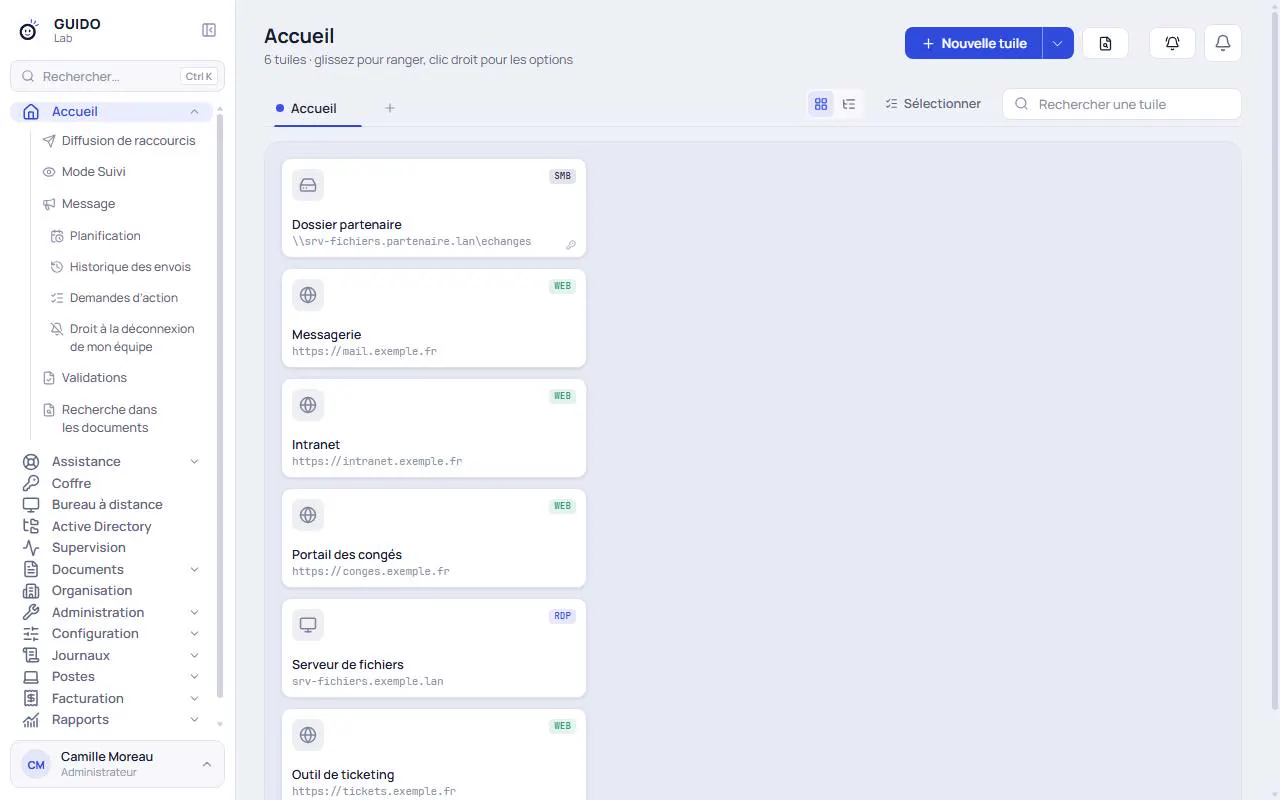
- Step 1
Link the vault credential
In the editor of a “Web link” tile, the “Assisted entry” block lets you link the vault credential. A “+” next to it creates the credential without leaving the editor.
Screen Home, tile editor, Assisted entry
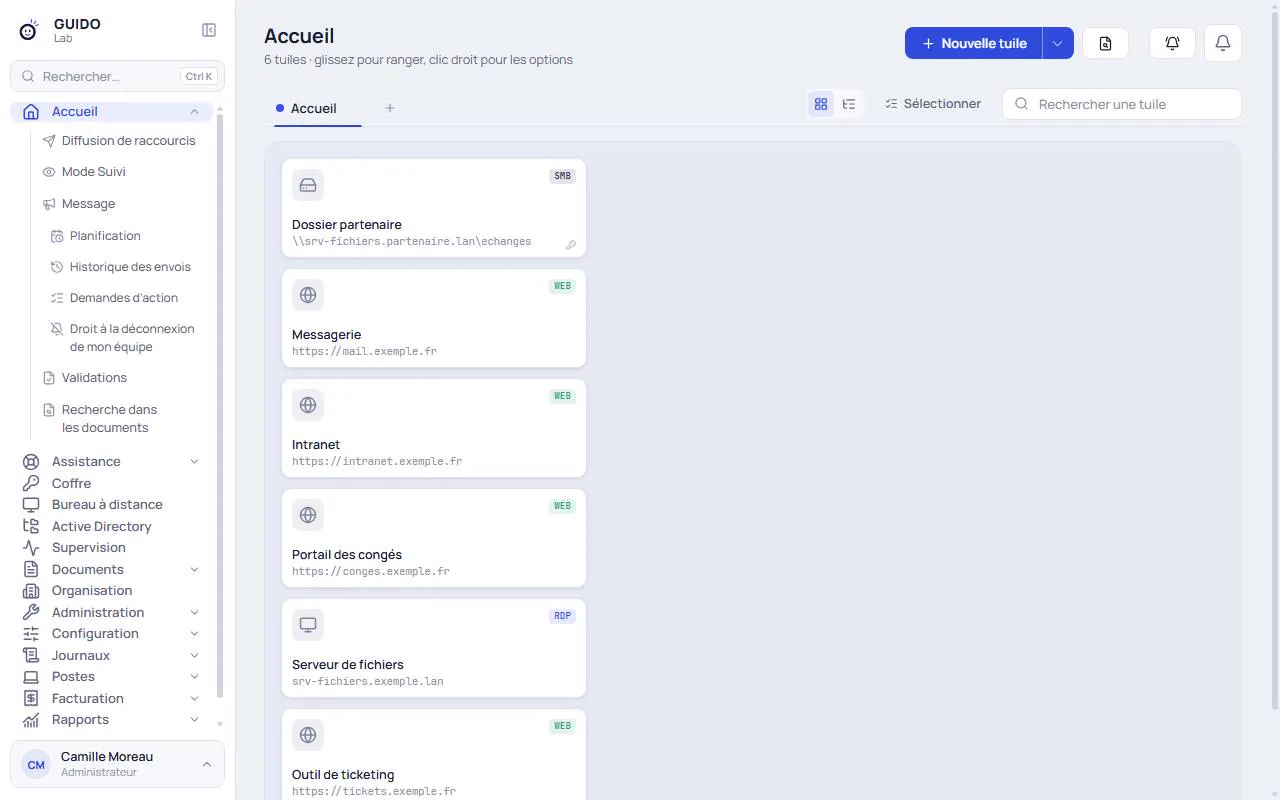
- Step 2
Start the assistant
“Save and start the assistant” saves the tile, then GUIDO Poste (version 2.12 or later) opens the site in a dedicated browser with a temporary profile, with a GUIDO panel. The buttons are greyed out, with the reason, if GUIDO Poste is not detected.
Screen Home, tile editor, Save and start the assistant
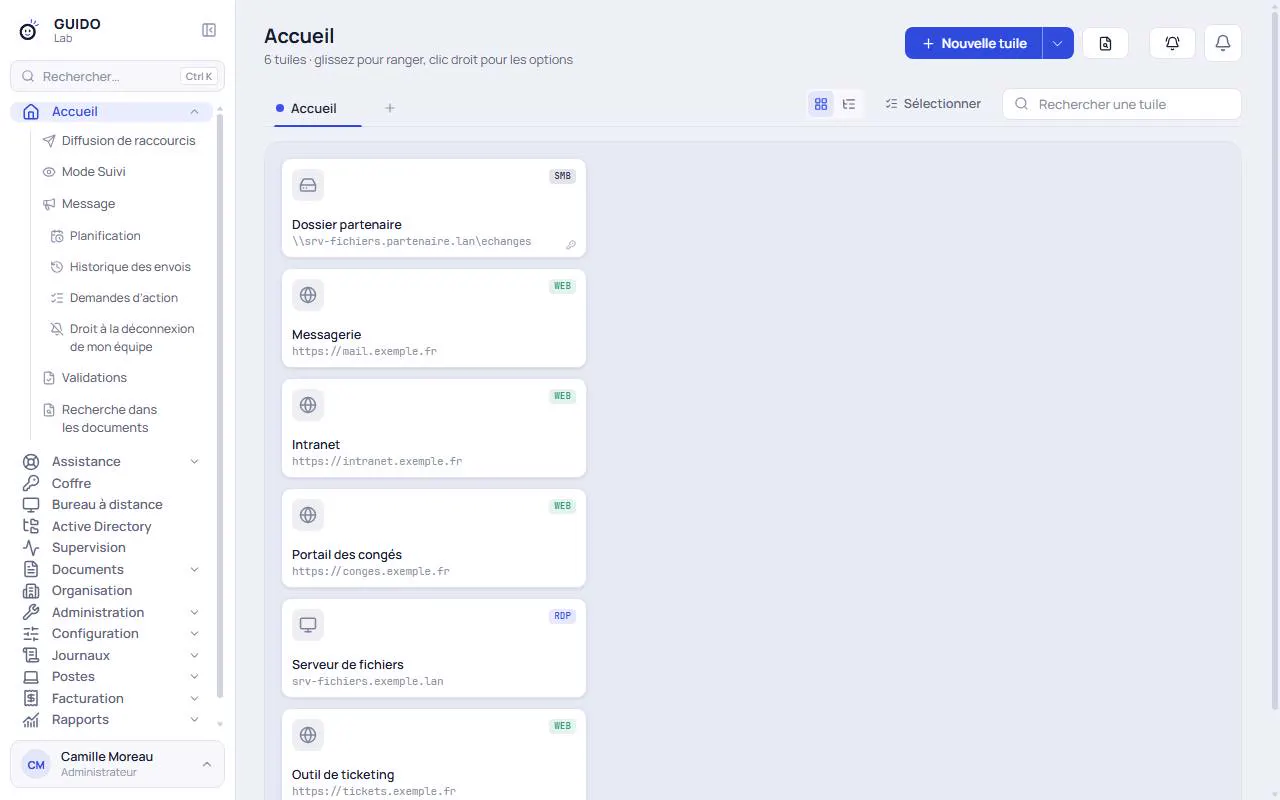
- Step 3
Point out the fields by signing in
Sign in as usual: click in the username field then on “Username”, type it, go to the next screen, click in the password field then on “Password”, confirm. All clicks are recorded, but never a typed value.
Screen GUIDO panel of the dedicated browser
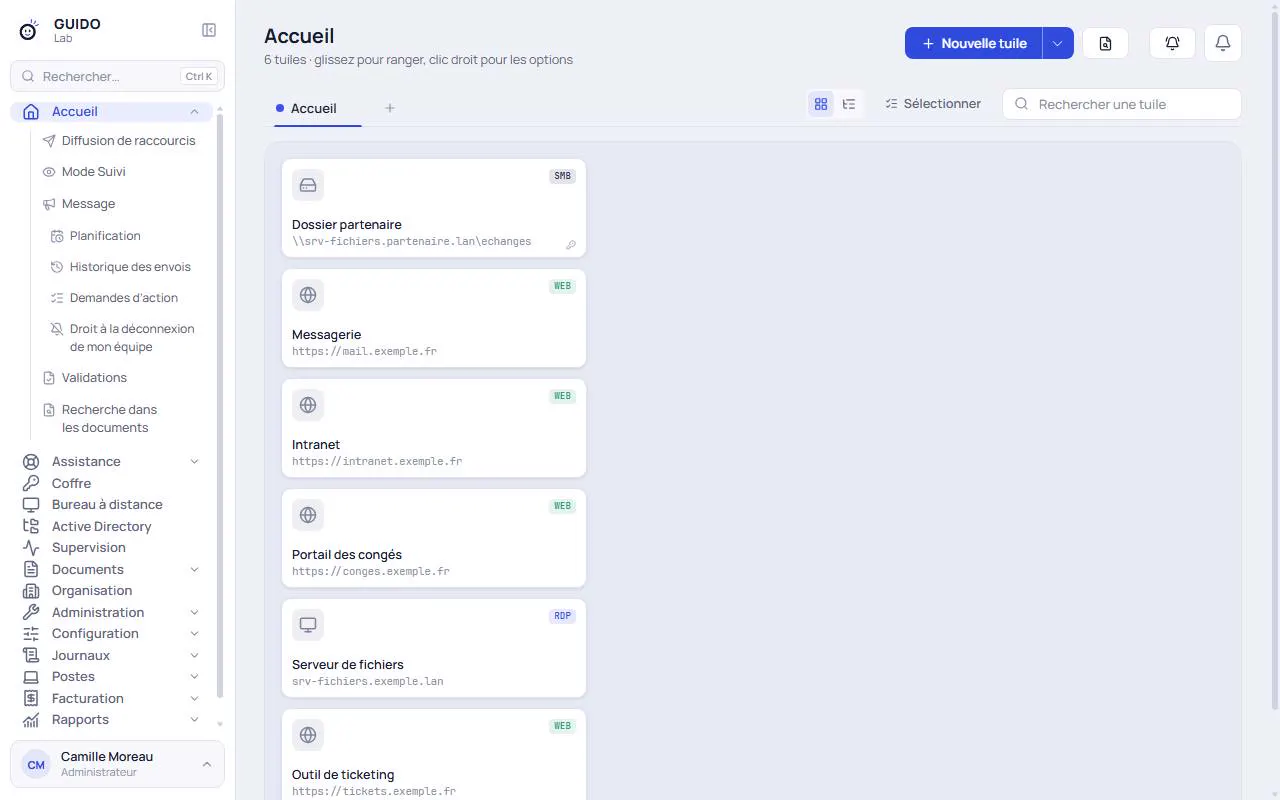
- Step 4
Finish
“Finish” sends the steps to the server, which writes them into the tile: the scenario is active and plays automatically.
Screen GUIDO panel, Finish
- Step 5
Use the tile
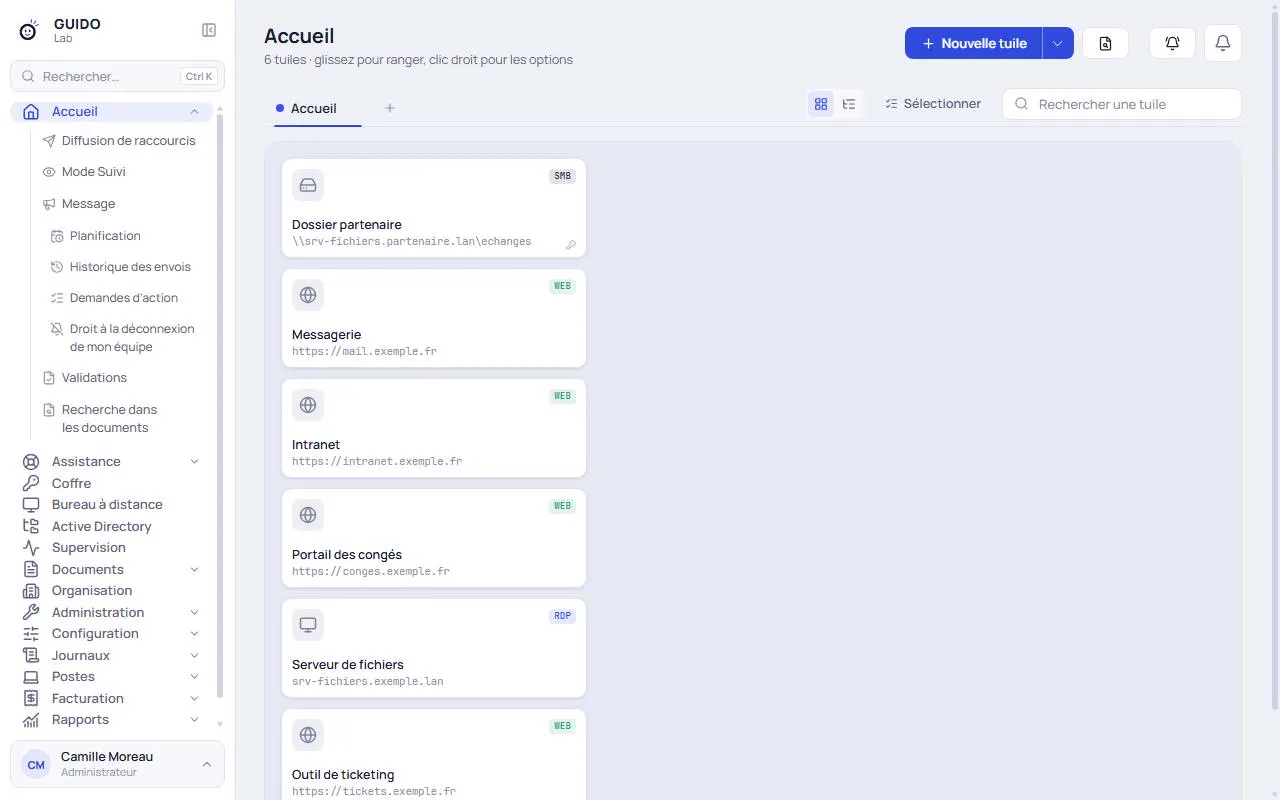
On click, GUIDO Poste opens the site and replays the scenario, with the vault credential read at the last moment and only on the tile’s origins. Without GUIDO Poste, the link opens normally, with a discreet message.
Screen Home, click the tile