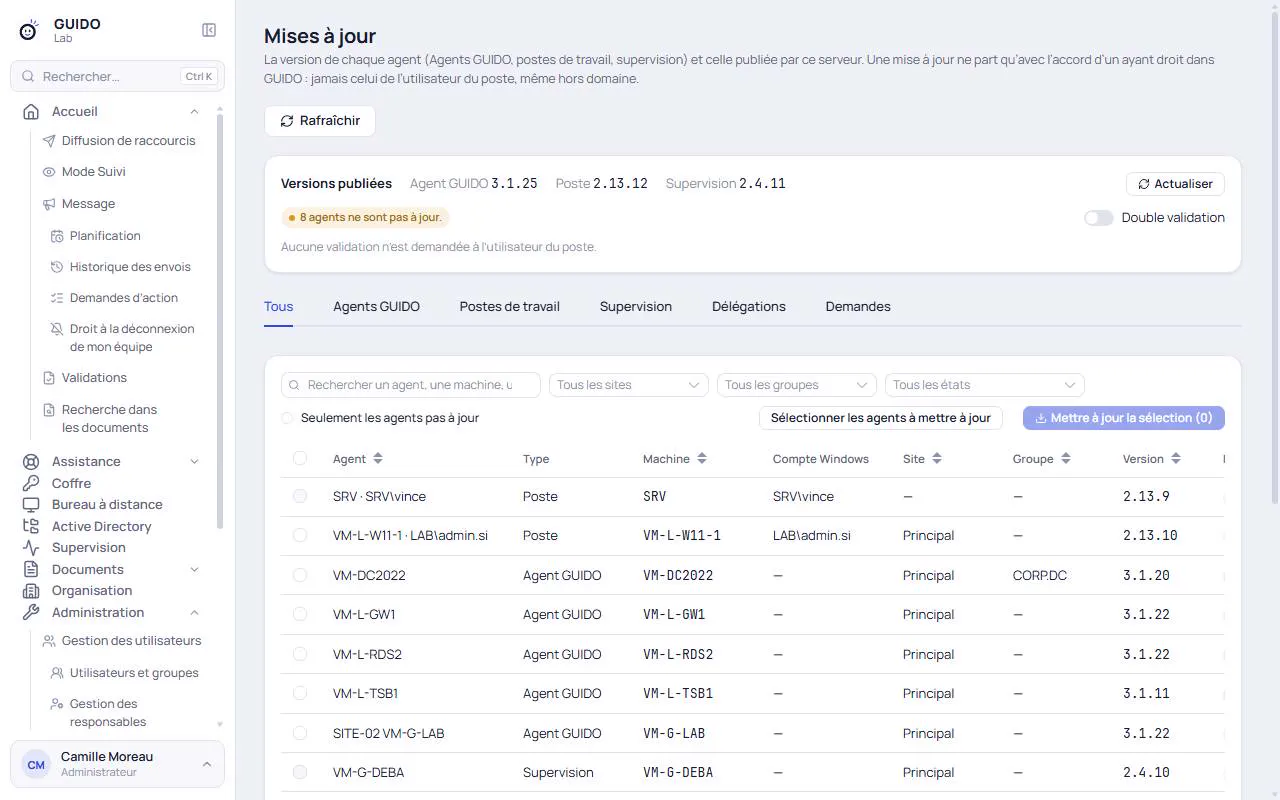
- Step 1
Back up now
Enter a passphrase of at least 12 characters and the destination folder, preferably a network share. The report displays line by line. Then download the backup as a single file to keep it safe.
Screen GUIDO Portal, Backups
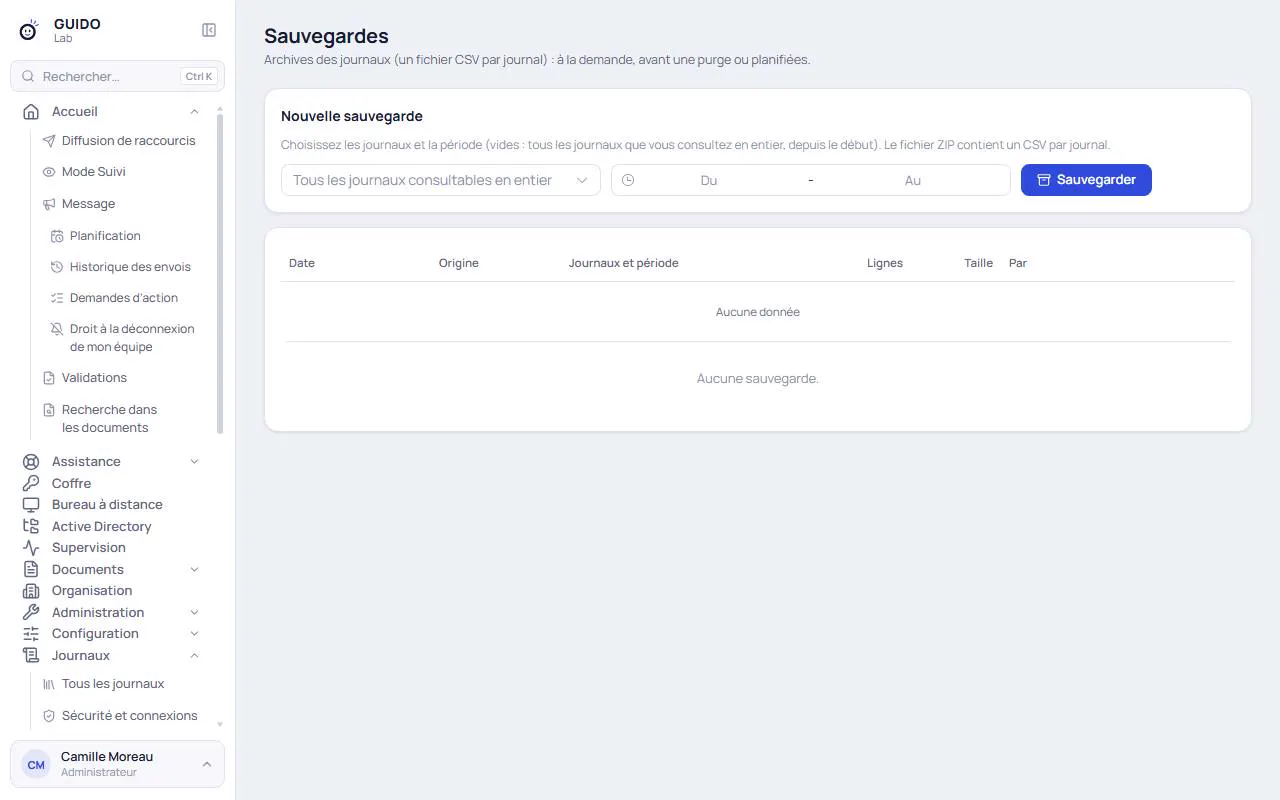
- Step 2
Schedule the daily backup
Turn on scheduling, choose the time, the number of backups to keep, the folder and the passphrase. The lead portal launches it every day at the set time.
Screen GUIDO Portal, Backups, Daily schedule
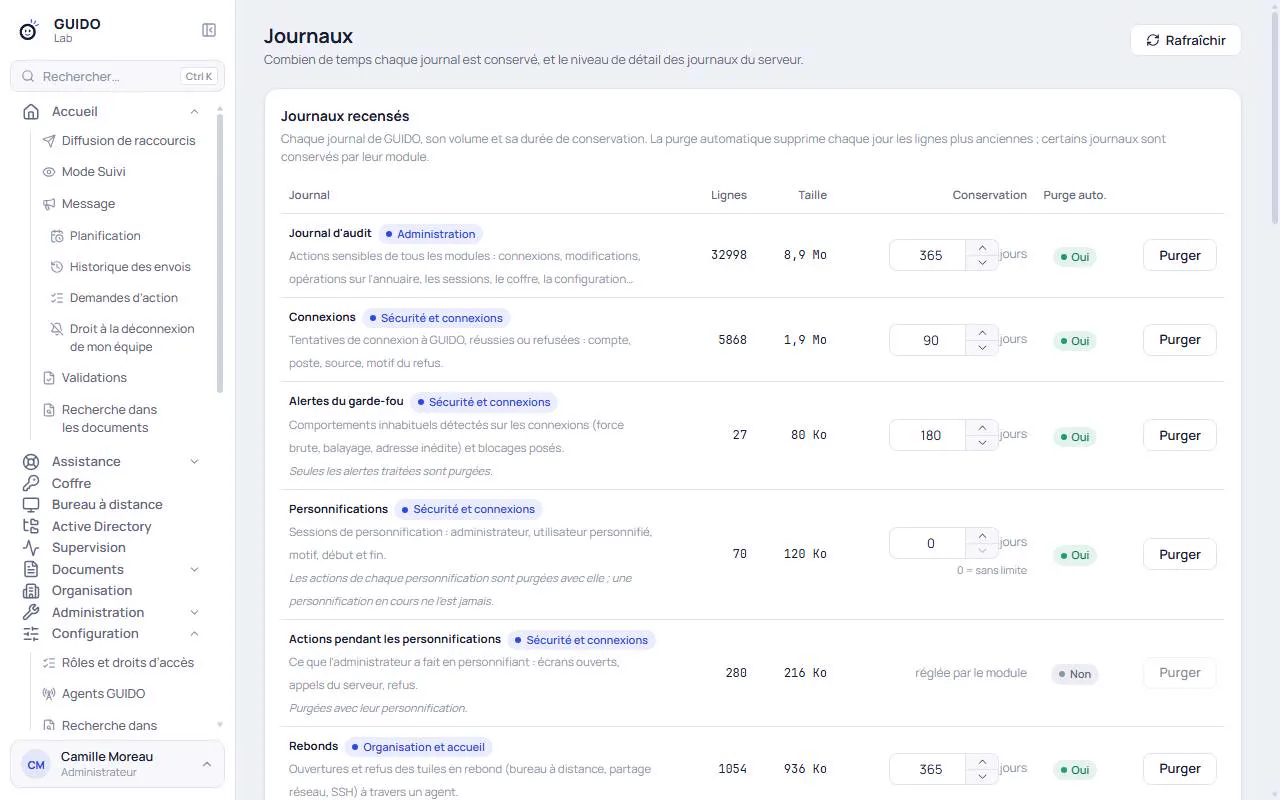
- Step 3
Review the latest run
Check the date, a non-zero size and the absence of the “failed” badge. If no backup has succeeded in more than 30 hours, the Machines page shows a red advice.
Screen GUIDO Portal, Backups, then Machines
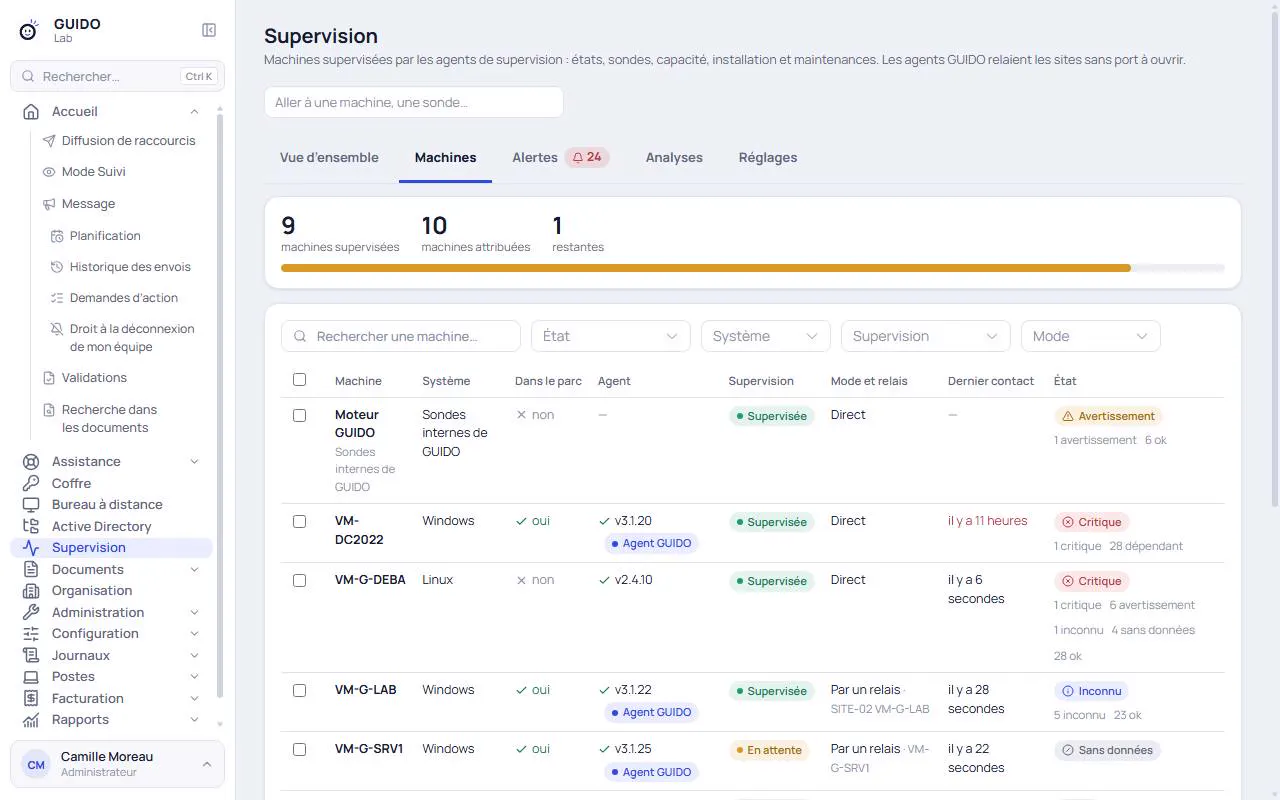
- Step 4
Bring everything back after a disaster
Recreate the machines with the same names and addresses, run the portal installer in “Restore a backup” mode, load the file with the passphrase, then “Restore everything”. A non-empty target database is never overwritten.
Screen Portal installer, Restore a backup (local console)
- Step 5
Restore a single environment
From the environment’s record, choose a dated backup and retype its technical name. After checking, confirm, or roll back: the previous database is kept in the meantime.
Screen GUIDO Portal, Environments, record, Export and restore