- Step 1
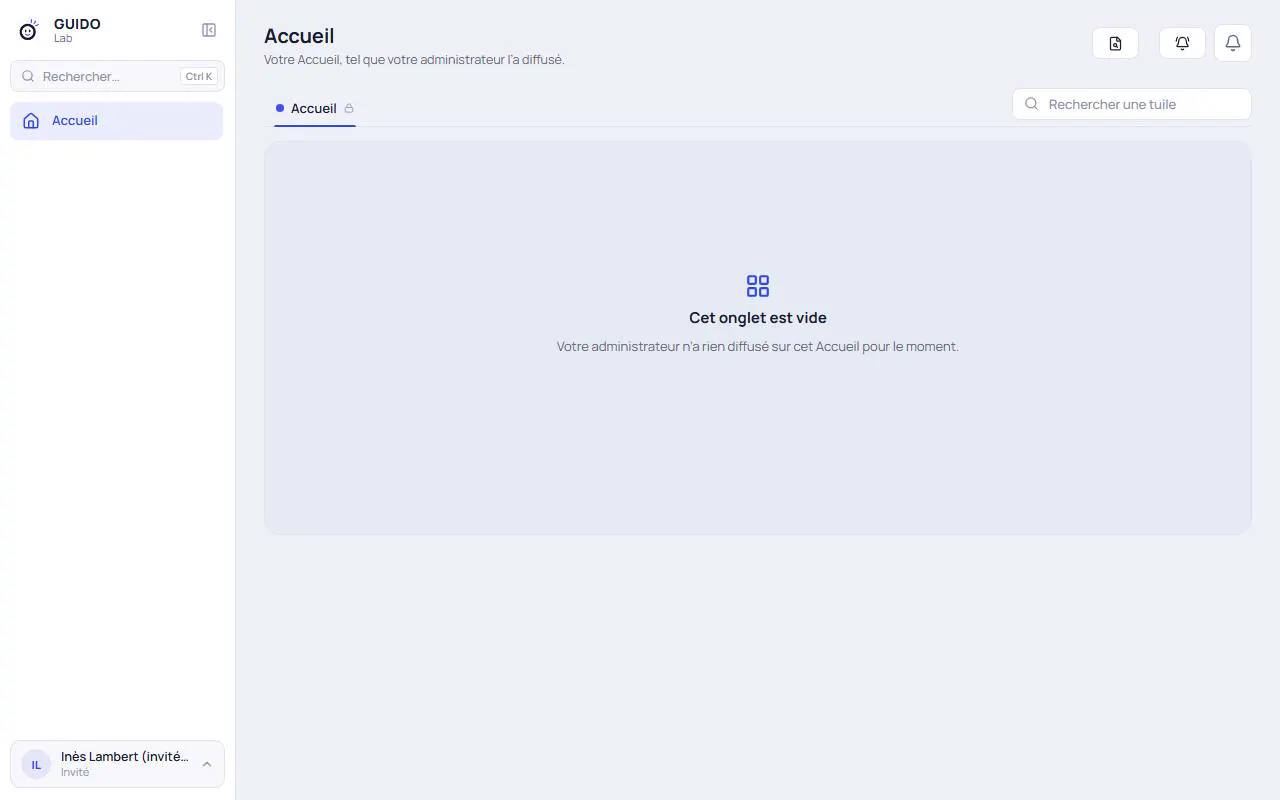
Understand the Guest role
The Guest role is locked: a padlock shows in the list, its boxes are greyed out, and it cannot be changed or deleted. Its only right is to see the Home you distribute to it and open its tiles. For other rights, you clone it.
Screen Settings, Roles and access rights
- Step 2
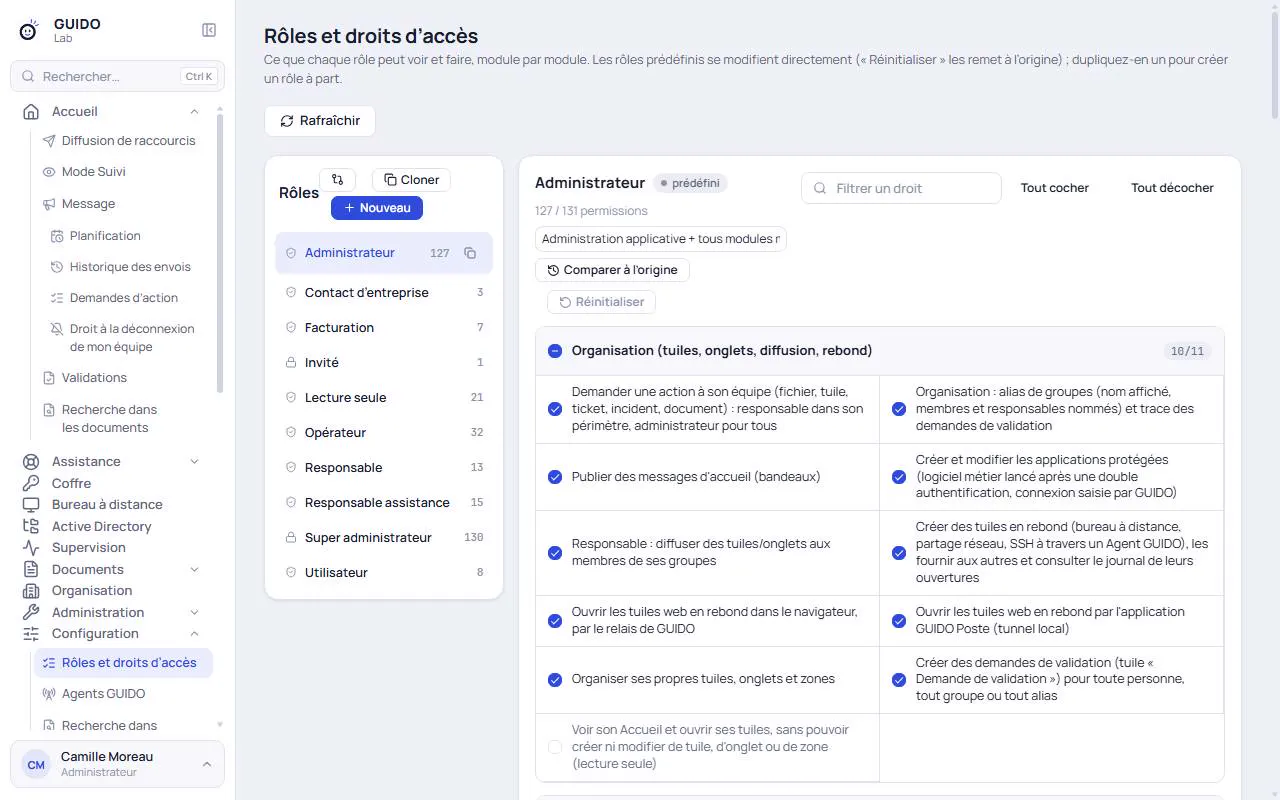
Create the account with this role
Create the guest’s account and give it the Guest role.
Screen Administration, Users and groups, New user
- Step 3
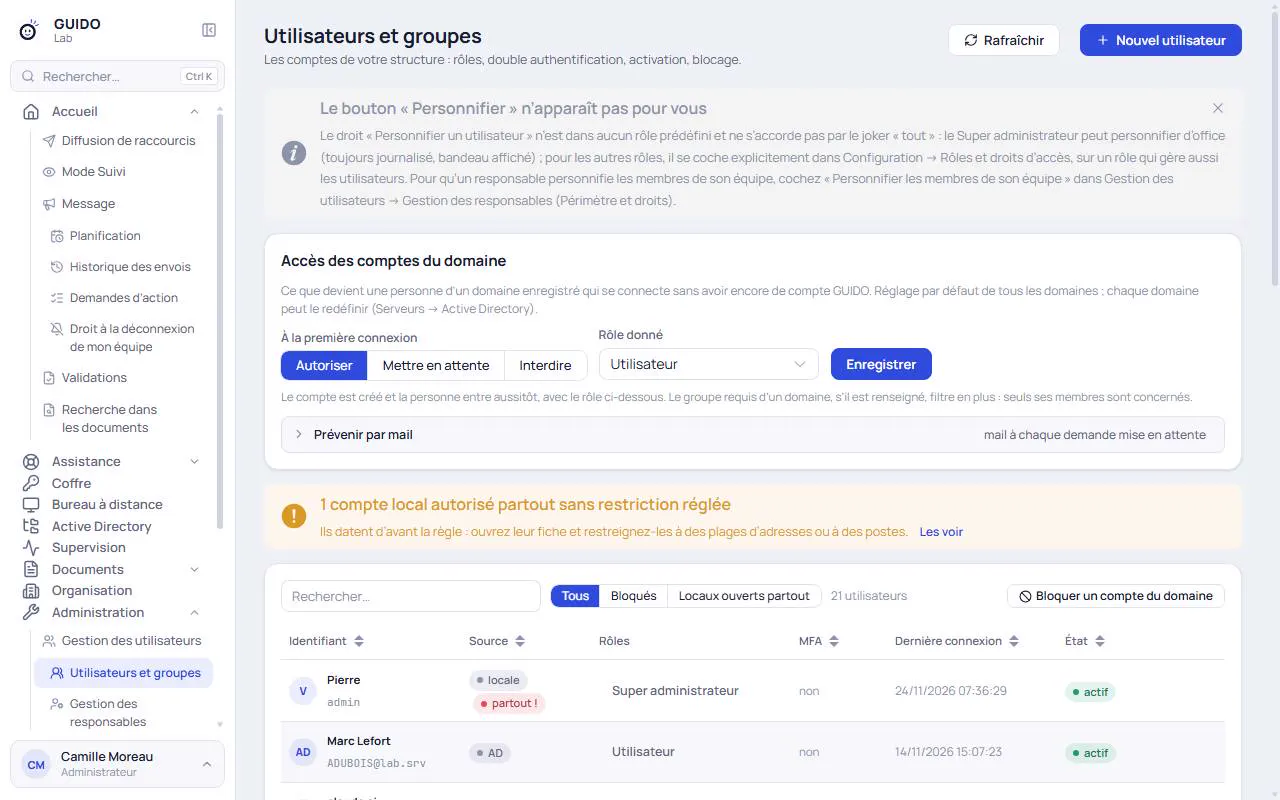
Require two-step verification
Tick “Two-step verification required” on the account: enrollment at first sign-in, a code afterwards. The general “required for administrators” rule does not cover the Guest, so the account box is needed.
Screen Administration, Users and groups, account record
- Step 4
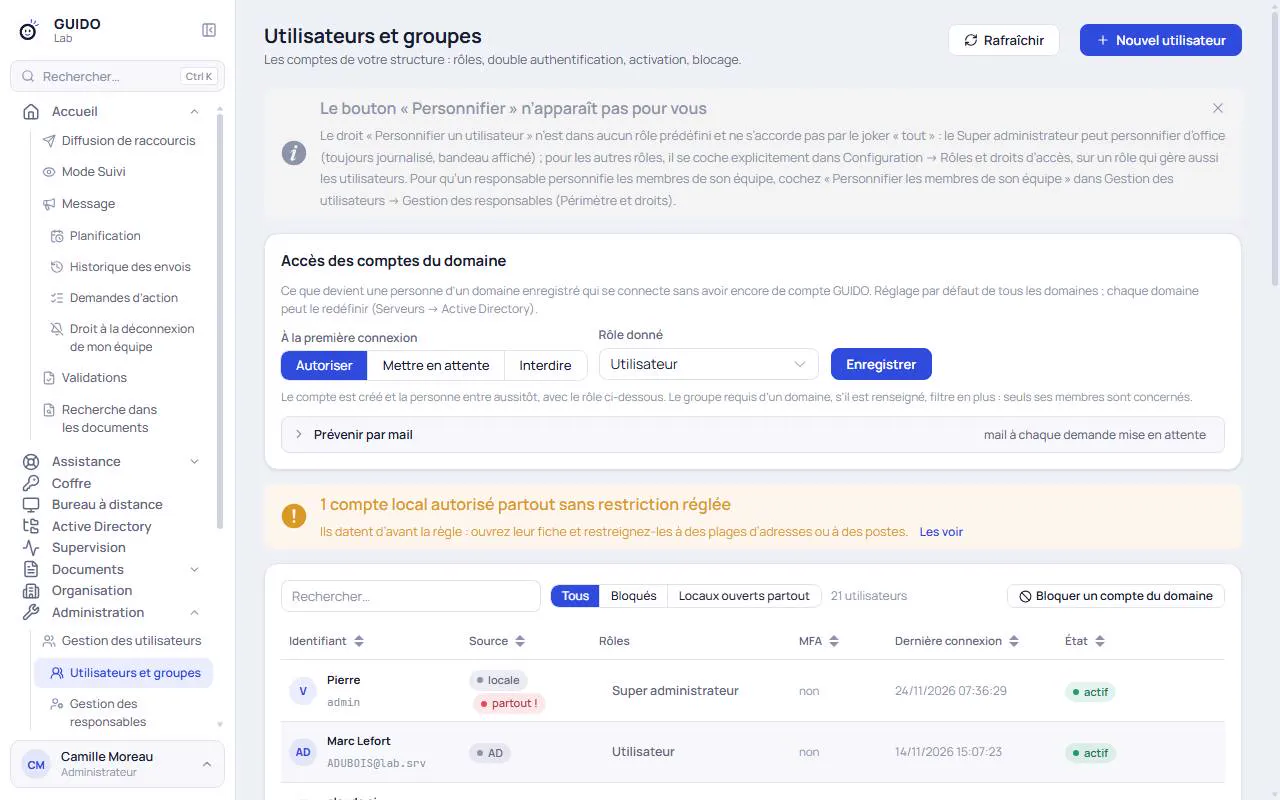
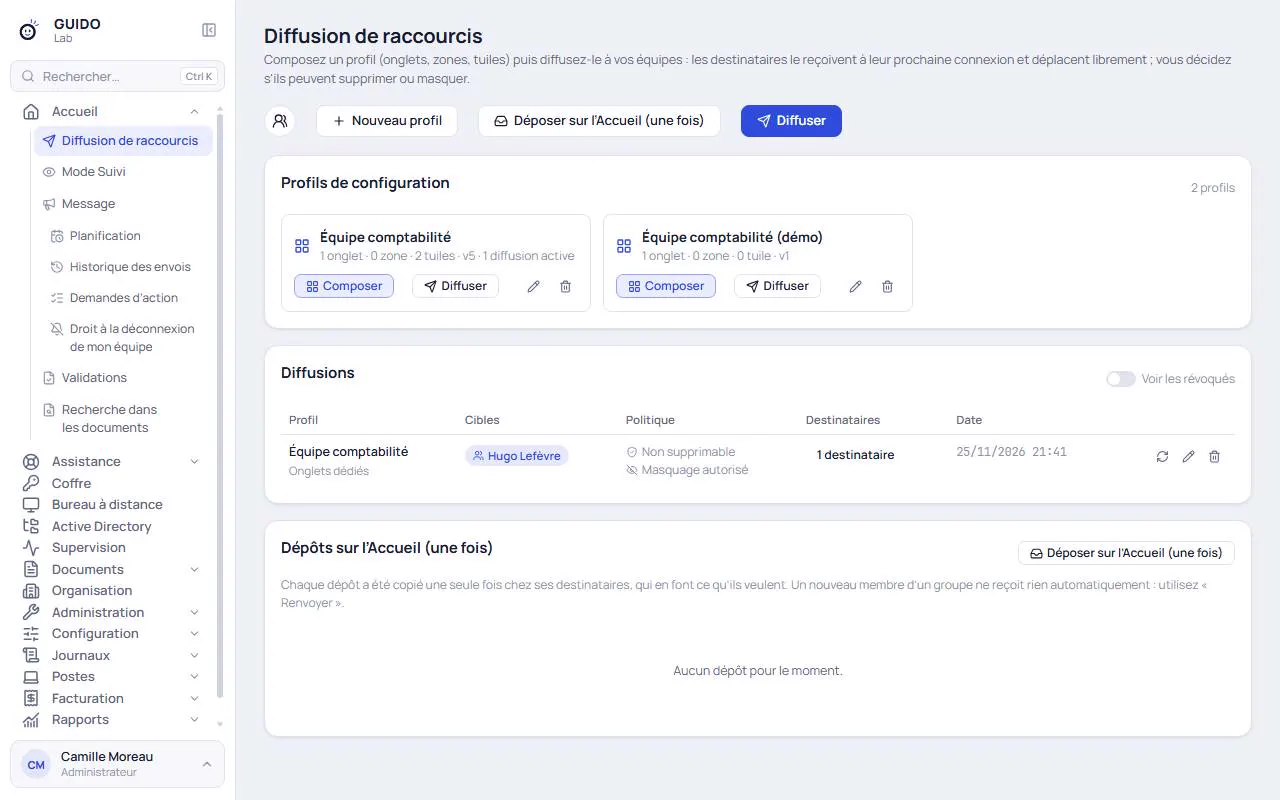
Distribute the guest’s Home
Build and distribute the tiles, tabs and zones the guest should see. They open like for everyone, but nothing can be created, changed, moved or deleted.
Screen Home, Shortcut distribution
- Step 5
Check with the guest account
On sign-in, the guest sees the distributed Home, with no create, edit, import or multi-select button. The Vault menu is hidden.
Screen Home (guest session)